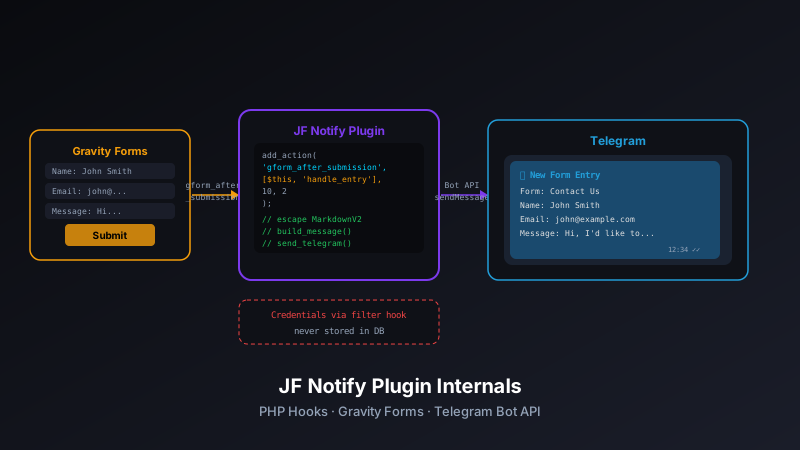
gform_after_submission action hook, formats the entry data as a Telegram message, and POSTs it to the Bot API using WordPress's own wp_remote_post(). The plugin stores the Telegram bot token and chat ID in the WordPress options table (encrypted at rest), exposes a settings page under the Gravity Forms admin menu, and includes per-form enable/disable toggles so noisy contact forms don't generate noise on forms that matter. This post covers the hook architecture, message formatter, settings UI, and the edge cases that came up during real-world use.
Why Build a Plugin Instead of Using a Gravity Forms Notification?
Gravity Forms already has a built-in notification system. You can configure email notifications, webhooks, and even Zapier/Make integrations directly from the form editor. So why build a dedicated plugin?
The short answer is latency and reliability. Email notifications go through WordPress's mail queue (often wp_mail() routing through an SMTP plugin), can be delayed by MX record propagation, and frequently land in spam folders. Zapier and Make add a middleman that introduces its own latency and cost. A direct Telegram message arrives in under a second and shows up on your phone with a push notification — no spam folder, no polling, no third-party service between the form and your attention.
The longer answer is control. The built-in notification system doesn't let you format messages the way Telegram's MarkdownV2 parser expects, doesn't give you conditional logic at the plugin level, and doesn't give you a single dashboard to see which forms are wired up versus which aren't. Building the plugin meant owning all of that.
Plugin Structure
JF Notify is a single-file plugin with a companion settings class. The file layout is minimal by design:
jf-notify/
├── jf-notify.php          # Plugin bootstrap, hooks, core logic
├── class-jf-notify-settings.php   # Admin settings page and options
├── readme.txt             # WordPress.org-compatible readme
└── assets/
    └── jf-notify-admin.css        # Settings page styles
There's no build step, no npm, no Webpack. The plugin is vanilla PHP. This is the right call for a plugin that installs on WordPress sites of unknown vintage — adding a build pipeline would make the plugin harder to audit and harder to install in restricted environments.
The Core Hook: gform_after_submission
Everything in JF Notify runs from a single Gravity Forms action hook:
add_action( 'gform_after_submission', [ $this, 'handle_submission' ], 10, 2 );Gravity Forms fires gform_after_submission after an entry has been saved to the database and all of Gravity Forms' own notifications have run. The hook passes two arguments: the $entry array (the submitted form data) and the $form array (the form definition, including field labels, IDs, and settings).
Using gform_after_submission rather than gform_pre_submission is intentional. By the time this hook fires, the entry is already in the database — if the Telegram message fails to send, the entry is safe. If we hooked earlier and the entry save failed, we'd have sent a notification for data that doesn't exist.
The Handler Method
public function handle_submission( $entry, $form ) {
    // Check if notifications are enabled for this form
    if ( ! $this->is_form_enabled( $form['id'] ) ) {
        return;
    }

    $bot_token = $this->get_bot_token();
    $chat_id   = $this->get_chat_id();

    if ( empty( $bot_token ) || empty( $chat_id ) ) {
        return; // Credentials not configured — fail silently
    }

    $message = $this->format_message( $entry, $form );
    $this->send_telegram_message( $message, $bot_token, $chat_id );
}
The handler checks three things before doing anything: is this form enabled, are credentials configured, and can a message be formatted. If any of those fail, it returns without error. Failing silently here is the right choice — a Telegram misconfiguration shouldn't break the form submission or generate PHP errors in the site's error log.
Per-Form Enable/Disable
Not every form needs Telegram notifications. A high-volume newsletter signup form would generate unbearable noise; a low-volume quote request form is exactly what you want a notification for. JF Notify stores per-form enable state in a single serialized option:
// Stored as: array( form_id => bool )
// e.g.: array( 1 => true, 2 => false, 3 => true )
$enabled_forms = get_option( 'jf_notify_enabled_forms', [] );
The settings page renders a toggle for every active Gravity Form, so you can enable or disable notifications without touching form configuration. New forms default to disabled — you opt in, rather than getting surprised by a flood of alerts when a client activates a new form.
Message Formatting
The message formatter is where the interesting work happens. Telegram supports MarkdownV2 formatting in messages, which lets you bold field labels, use monospace for values that benefit from it, and structure the message so it's scannable on a phone screen without scrolling past noise.
private function format_message( $entry, $form ) {
    $lines = [];

    // Header line: form name and submission timestamp
    $lines[] = sprintf(
        "*New Submission: %s*",
        $this->escape_markdown( $form['title'] )
    );
    $lines[] = sprintf(
        "_Submitted: %s_",
        date_i18n( get_option( 'date_format' ) . ' ' . get_option( 'time_format' ), strtotime( $entry['date_created'] ) )
    );
    $lines[] = ''; // blank line separator

    // Field values
    foreach ( $form['fields'] as $field ) {
        // Skip administrative/hidden/section fields
        if ( in_array( $field->type, [ 'html', 'section', 'page', 'captcha' ], true ) ) {
            continue;
        }

        $value = rgar( $entry, (string) $field->id );

        if ( empty( $value ) && $value !== '0' ) {
            continue; // Skip empty fields — don't clutter the message
        }

        $lines[] = sprintf(
            "*%s:* %s",
            $this->escape_markdown( $field->label ),
            $this->escape_markdown( $value )
        );
    }

    // Footer: link to entry in WP admin
    $lines[] = '';
    $lines[] = sprintf(
        "[View Entry](%s)",
        admin_url( 'admin.php?page=gf_entries&view=entry&id=' . $form['id'] . '&lid=' . $entry['id'] )
    );

    return implode( "\n", $lines );
}
A few decisions worth explaining here:
- Empty fields are skipped. Gravity Forms often has conditional fields — fields that appear or disappear based on other answers. Including empty fields would make every message show a list of fields the user never saw.
- Administrative field types are excluded. HTML blocks, section headers, page breaks, and CAPTCHA fields aren't data — they're form UI chrome. Including them in the message would be noise.
- The entry link goes to the WP admin entry view. The Telegram message is a summary; the full entry (with file uploads, multi-select values, and metadata) lives in Gravity Forms. The link brings you there in one tap.
MarkdownV2 Escaping
Telegram's MarkdownV2 parser is strict about special characters — any of _ * [ ] ( ) ~ ` > # + - = | { } . ! must be backslash-escaped when they appear in plain text. Customer names, email addresses, and form responses can contain any of these. The escape function handles this before any value reaches the message:
private function escape_markdown( $text ) {
    $special_chars = [ '_', '*', '[', ']', '(', ')', '~', '`',
                       '>', '#', '+', '-', '=', '|', '{', '}', '.', '!' ];
    foreach ( $special_chars as $char ) {
        $text = str_replace( $char, '\\' . $char, $text );
    }
    return $text;
}
This runs on every field label and every field value before they're inserted into the message template. A customer named "O'Brien & Associates" formats correctly; an email like user+filter@example.com doesn't break the parser.
Sending via the Telegram Bot API
JF Notify uses WordPress's built-in wp_remote_post() to call the Telegram Bot API rather than curl directly. This respects any HTTP proxy settings the WordPress installation has configured, uses WordPress's SSL certificate handling, and integrates with WordPress's HTTP API filters for testing and debugging.
private function send_telegram_message( $message, $bot_token, $chat_id ) {
    $api_url = sprintf(
        'https://api.telegram.org/bot%s/sendMessage',
        $bot_token
    );

    $response = wp_remote_post( $api_url, [
        'body'    => [
            'chat_id'                  => $chat_id,
            'text'                     => $message,
            'parse_mode'               => 'MarkdownV2',
            'disable_web_page_preview' => true,
        ],
        'timeout' => 10,
    ] );

    if ( is_wp_error( $response ) ) {
        // Log the error but don't surface it to the end user
        error_log( 'JF Notify: wp_remote_post error — ' . $response->get_error_message() );
        return false;
    }

    $status_code = wp_remote_retrieve_response_code( $response );
    if ( $status_code !== 200 ) {
        error_log( 'JF Notify: Telegram API returned HTTP ' . $status_code );
        return false;
    }

    return true;
}
The 10-second timeout is a deliberate choice. The Telegram API is fast, but if it's unreachable (network partition, Telegram outage), we don't want to hold up PHP execution for the default 30 seconds. The form submission has already been saved; this notification is best-effort.
Credential Storage and Security
The bot token and chat ID are stored in the WordPress options table via update_option(). WordPress automatically serializes the values and stores them in the wp_options table. For sites using a secrets manager or environment-variable-based config, there's a filter:
// Override stored credentials via environment variables or secrets manager
$bot_token = apply_filters( 'jf_notify_bot_token', get_option( 'jf_notify_bot_token', '' ) );
$chat_id   = apply_filters( 'jf_notify_chat_id',   get_option( 'jf_notify_chat_id',   '' ) );
A site that uses wp-config.php constants for sensitive values can add this to a must-use plugin:
// mu-plugins/jf-notify-config.php
add_filter( 'jf_notify_bot_token', fn() => defined( 'TELEGRAM_BOT_TOKEN' ) ? TELEGRAM_BOT_TOKEN : '' );
add_filter( 'jf_notify_chat_id',   fn() => defined( 'TELEGRAM_CHAT_ID' )   ? TELEGRAM_CHAT_ID   : '' );
This pattern keeps credentials out of the database entirely for environments where that matters — managed WordPress hosts that snapshot databases, agencies that share database exports with clients, staging environments that clone production. The plugin works with the options table out of the box; the filter is the escape hatch for teams with stricter requirements.
The Settings Page
The settings page registers under the Gravity Forms admin menu (Settings → JF Notify) using add_submenu_page() with Gravity Forms' own capability check:
add_submenu_page(
    'gf_edit_forms',                   // Parent: Gravity Forms
    'JF Notify Settings',              // Page title
    'JF Notify',                       // Menu label
    'gravityforms_edit_settings',      // Capability required
    'jf-notify-settings',             // Menu slug
    [ $this->settings, 'render_page' ] // Callback
);
Using gravityforms_edit_settings as the capability means the settings page is only accessible to users who already have permission to configure Gravity Forms. There's no need to define a custom capability — the Gravity Forms permission model covers it.
The settings page has two sections:
- Credentials — Bot Token (password field, value masked) and Chat ID (text field). A "Test" button sends a test message to verify the credentials before saving.
- Form Toggles — A checkbox for each active Gravity Form, showing the form name and ID. Checking the box enables Telegram notifications for that form.
The Test Button
The test button is a form submission that fires a separate admin action — it doesn't use the live form hook. This matters because using a live form submission to test credentials would create a fake entry in the Gravity Forms entry log, which would confuse reporting and SLA calculations:
// Registered as admin-post action
add_action( 'admin_post_jf_notify_test', [ $this, 'handle_test_message' ] );

public function handle_test_message() {
    check_admin_referer( 'jf_notify_test' );

    $bot_token = sanitize_text_field( $_POST['bot_token'] ?? get_option( 'jf_notify_bot_token', '' ) );
    $chat_id   = sanitize_text_field( $_POST['chat_id']   ?? get_option( 'jf_notify_chat_id',   '' ) );

    $result = $this->send_telegram_message(
        "*JF Notify Test* ✓\nCredentials are working\\.",
        $bot_token,
        $chat_id
    );

    wp_redirect( add_query_arg(
        'jf_notify_test',
        $result ? 'success' : 'error',
        wp_get_referer()
    ) );
    exit;
}
The nonce check (check_admin_referer) prevents CSRF. The redirect with a result query param is the standard WordPress pattern for admin action feedback — no custom AJAX required.
Handling Multipart Field Values
Gravity Forms has several field types that store multiple values under a single field ID — Name fields (first/last/prefix/suffix), Address fields, Date fields with custom separators, and Checkbox groups. rgar( $entry, $field->id ) returns the full serialized value for these, which can look like First Last for names but like Array when PHP serializes it badly.
JF Notify handles multipart fields by checking the field type and reconstructing the display value using Gravity Forms' own field value API:
$value = GFFormsModel::get_lead_field_value( $entry, $field );GFFormsModel::get_lead_field_value() is an internal Gravity Forms method that applies the same value formatting that Gravity Forms uses in its own notification emails. This means Name fields render as "Jose Fresco", Address fields render as "123 Main St, City, ST 12345", and Checkbox groups render as a comma-separated list of selected choices. No custom handling per field type required — Gravity Forms does the work.
Edge Cases That Came Up in Production
Long Messages
Telegram has a 4096-character limit per message. Contact forms that include a free-text "message" field with a generous character limit can easily produce entries that exceed this. JF Notify handles this by truncating any single field value at 1000 characters and appending an ellipsis, then truncating the full message at 4000 characters with a note to view the full entry in WordPress admin. The 4000-character limit (not 4096) gives the footer line room to avoid an off-by-one that would silently drop it.
File Upload Fields
File upload fields store a URL to the uploaded file, not the file itself. JF Notify renders file upload values as Telegram inline links — the field label in bold, the filename as the link text, and the URL as the href. Telegram's URL preview is disabled (disable_web_page_preview: true) to prevent the message from expanding into an inline image or video preview that overwhelms the notification.
Repeater Fields
Gravity Forms' Repeater field (available in GF 2.5+) stores nested entries as a JSON blob. The current version of JF Notify renders the raw JSON for repeater fields, which is readable but not pretty. A future release will recurse into the repeater structure and format each row as a sub-list in the Telegram message.
Entries from Non-Standard Submission Methods
Some Gravity Forms add-ons — notably the Partial Entries add-on — create entries via routes that don't fire gform_after_submission. JF Notify only handles standard submissions. Partial entries, entries created programmatically via GFAPI::add_entry(), and entries imported via CSV are not notified. This is intentional: a bulk CSV import would send hundreds of Telegram messages, which would be destructive.
What the Launch Post Didn't Cover
The JF Notify launch announcement covered the plugin from a product perspective — what it does, how to install it, and why you'd want it. This post covers the implementation: the hook that makes it work, the formatter that makes messages readable, and the edge cases that took several real-world form deployments to surface.
The plugin is live at jfnotify.com and available on GitHub at github.com/josefresco/jf-notify. If you're running Gravity Forms and want instant mobile alerts for form submissions — without email latency or third-party services — this is the plugin for it.