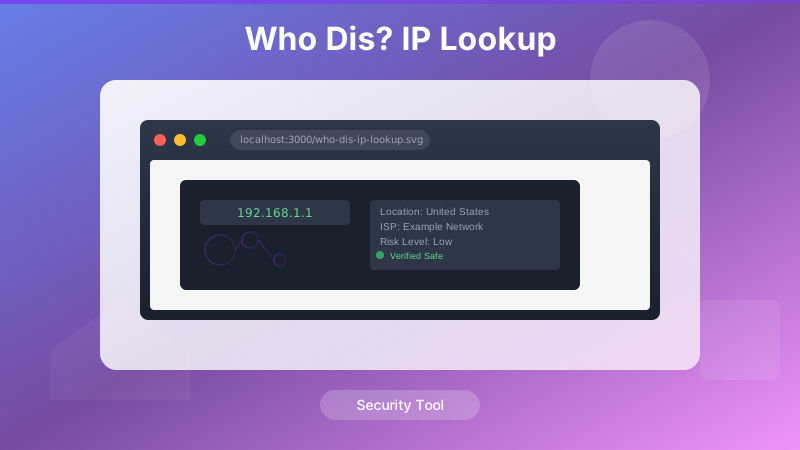
who-dis — a Chrome extension that adds "Who is this IP?" to the right-click context menu — so the lookup happens in a popup, right where you are, in under a second.
The Problem with IP Lookups
IP addresses show up constantly in developer workflows: server logs, email headers, abuse reports, security alerts, API responses, network diagnostics. The information they carry — country, city, ISP, ASN, whether the IP is a known VPN exit or datacenter — is genuinely useful context.
The lookup workflow, though, has always been tedious:
- Select the IP address
- Copy it
- Open a new tab
- Navigate to an IP lookup service
- Paste and submit
- Read the results
- Switch back to what you were doing
That's seven steps for information you need in two seconds. The web lookup approach also scatters your workflow across tabs and requires navigating to a third-party site for routine information.
who-dis compresses that to two steps: right-click, read.
What Who Dis Does
Who Dis adds a single context menu item that appears when you right-click on selected text. If the selected text looks like an IP address (IPv4 or IPv6), selecting "Who is this IP?" opens a small popup with:
- Country and city — flag emoji, country name, city
- ISP and organization — the registered network name
- ASN — Autonomous System Number and name
- IP type flags — datacenter, VPN, Tor exit node, proxy (where available)
- Timezone — the timezone associated with the geolocation
The popup appears near the selection point, shows the data, and dismisses when you click away. No new tab, no navigation, no context switch.
Architecture: Manifest V3
Who Dis is built to Chrome Manifest V3, which changes how extensions interact with the browser in a few important ways:
Service Workers instead of Background Pages
MV3 replaces persistent background pages with event-driven service workers. The extension's background logic — registering the context menu item, handling the click, fetching IP data — runs in a service worker that Chrome spins up on demand and shuts down when idle.
// background.js (service worker)
chrome.runtime.onInstalled.addListener(() => {
  chrome.contextMenus.create({
    id: 'who-dis-lookup',
    title: 'Who is this IP?',
    contexts: ['selection']
  });
});

chrome.contextMenus.onClicked.addListener((info, tab) => {
  if (info.menuItemId === 'who-dis-lookup') {
    const selectedText = info.selectionText.trim();
    if (isValidIP(selectedText)) {
      lookupIP(selectedText, tab);
    }
  }
});
No Remote Code Execution
MV3 prohibits extensions from executing remotely hosted code. All logic in Who Dis is bundled locally in the extension. The only external call is to the IP data API — the code itself never comes from outside the extension package.
Host Permissions
The manifest declares explicit host permissions for the API endpoint rather than using the catch-all "<all_urls>" pattern:
// manifest.json (relevant sections)
{
  "manifest_version": 3,
  "name": "Who Dis — IP Lookup",
  "version": "1.0",
  "description": "Right-click any IP address for instant geolocation and network data",
  "permissions": [
    "contextMenus",
    "storage"
  ],
  "host_permissions": [
    "https://ipapi.co/*"
  ],
  "background": {
    "service_worker": "background.js"
  },
  "action": {
    "default_popup": "popup.html",
    "default_icon": {
      "16": "icons/icon16.png",
      "48": "icons/icon48.png",
      "128": "icons/icon128.png"
    }
  }
}
IP Detection
The extension needs to determine whether selected text is actually an IP address before offering the menu item — or at least before performing a lookup. The validation handles both IPv4 and IPv6:
function isValidIP(text) {
  // IPv4
  const ipv4Regex = /^(\d{1,3}\.){3}\d{1,3}$/;
  // IPv6 (simplified — full validation is complex)
  const ipv6Regex = /^([0-9a-fA-F]{0,4}:){2,7}[0-9a-fA-F]{0,4}$/;

  if (ipv4Regex.test(text)) {
    // Validate each octet is 0-255
    return text.split('.').every(octet => {
      const n = parseInt(octet, 10);
      return n >= 0 && n <= 255;
    });
  }

  return ipv6Regex.test(text);
}
The context menu item is always shown when text is selected — Chrome's context menu API doesn't support conditional display based on selection content. The validation happens at click time, with a graceful "That doesn't look like a valid IP address" message if the selection isn't an IP.
The Popup UI
Results display in a content script injected into the active tab rather than a browser popup window. This keeps the lookup result visually close to where the IP appeared on the page:
// Injected into page to show results
function showResultCard(ip, data) {
  const card = document.createElement('div');
  card.id = 'who-dis-card';
  card.innerHTML = `
    <div class="who-dis-header">
      <span class="who-dis-flag">${data.country_flag_emoji}</span>
      <strong>${ip}</strong>
      <button class="who-dis-close">×</button>
    </div>
    <div class="who-dis-row">
      <span class="who-dis-label">Location</span>
      <span>${data.city}, ${data.country_name}</span>
    </div>
    <div class="who-dis-row">
      <span class="who-dis-label">ISP</span>
      <span>${data.org}</span>
    </div>
    <div class="who-dis-row">
      <span class="who-dis-label">ASN</span>
      <span>${data.asn}</span>
    </div>
    <div class="who-dis-row">
      <span class="who-dis-label">Timezone</span>
      <span>${data.timezone}</span>
    </div>
  `;
  document.body.appendChild(card);

  // Dismiss on outside click
  document.addEventListener('click', (e) => {
    if (!card.contains(e.target)) card.remove();
  }, { once: true });
}
The card is styled with an injected stylesheet scoped to the #who-dis-card ID to avoid conflicts with the host page's CSS.
API Choice: ipapi.co
Who Dis uses ipapi.co for geolocation data. The choice came down to:
- Free tier — 30,000 requests/month, more than enough for personal use
- No API key required for the free tier (simplifies first-run setup)
- JSON response — clean, predictable schema with all the fields I needed
- IPv6 support — works with both address families
The free tier limitation is worth noting: for high-volume use, an API key is recommended, and Who Dis includes an optional API key setting accessible from the extension popup.
async function fetchIPData(ip) {
  // Check for saved API key
  const { apiKey } = await chrome.storage.local.get('apiKey');
  const url = apiKey
    ? `https://ipapi.co/${ip}/json/?key=${apiKey}`
    : `https://ipapi.co/${ip}/json/`;

  const response = await fetch(url);
  if (!response.ok) throw new Error(`API error: ${response.status}`);
  return response.json();
}
Caching Lookups
Hitting the API every time the same IP appears in your work session is wasteful. Who Dis caches results using chrome.storage.session, which persists across pages within a browser session but clears when the browser closes — appropriate for IP data that's unlikely to change within a session but shouldn't be stale across days:
async function lookupWithCache(ip) {
  const cacheKey = `cache_${ip}`;
  const cached = await chrome.storage.session.get(cacheKey);

  if (cached[cacheKey]) {
    return cached[cacheKey]; // Cache hit
  }

  const data = await fetchIPData(ip);
  await chrome.storage.session.set({ [cacheKey]: data });
  return data;
}
Real-World Use Cases
A few scenarios where Who Dis saves time in a real development workflow:
Reading Server Logs
Tail-reading a web server access log and seeing unusual traffic from an unfamiliar IP block? Right-click to confirm whether it's a known CDN, a Tor exit node, or a datacenter IP — without leaving the log viewer tab.
Email Header Analysis
Investigating a phishing attempt or spam campaign? Email headers contain a chain of IP hops through mail servers. Select each IP and right-click to trace the path geographically and identify anomalies.
Security Alerts
A monitoring dashboard flags a failed login from an IP. Right-click to see whether it's coming from a known cloud provider (likely automated attack tooling) or a residential ISP in an unexpected country — context that shapes the response.
API Response Debugging
An API returns a server IP or the response comes from an unexpected region. Quick lookup confirms whether the CDN is routing you to the right geographic endpoint.
What I'd Add Next
The current version keeps the scope narrow by design — lookup, display, dismiss. A few features I've considered:
- Threat intelligence flags — integrating with a threat feed to flag IPs known for malicious activity
- Copy to clipboard — a one-click button to copy the full lookup result as formatted text
- Lookup history — a popup panel showing recent lookups in the current session
- Custom API support — allowing power users to point the extension at a self-hosted IP data service
The risk with feature additions is always complexity creep. The extension's main value is that it's instant and unobtrusive — a heavy settings UI or multi-panel interface would undermine that.
Installing Who Dis
The extension isn't in the Chrome Web Store — it's designed for personal/developer use and installed as an unpacked extension from the source:
# Clone the repo
git clone https://github.com/josefresco/who-dis.git

# Load in Chrome:
# 1. Navigate to chrome://extensions
# 2. Enable "Developer mode" (top right toggle)
# 3. Click "Load unpacked"
# 4. Select the cloned who-dis directory
Unpacked installation means it's available immediately and updated by pulling the latest from GitHub. No Chrome Web Store review process, no waiting — which is appropriate for a tool used in a trusted personal environment.
Lessons from Building Context Menu Extensions
A few things that came up during development:
- Service worker lifecycle is unforgiving. MV3 service workers are killed aggressively by Chrome. Any state stored in variables is gone between events. Use
chrome.storagefor anything that needs to survive across clicks. - Content script injection timing matters. Injecting a content script on context menu click is subject to whether the tab's page has fully loaded. Handle cases where injection fails gracefully.
- API rate limits need user visibility. The first version silently failed when hitting the free tier limit. Adding a clear "rate limit reached — add an API key in settings" message made the failure recoverable.
- CSS isolation in content scripts is hard. Injecting a styled card into an arbitrary page means fighting with the host page's CSS. Using a Shadow DOM for the card UI is the right long-term approach to avoid style bleed.
Conclusion
Who Dis is a small tool that solves a small but frequent friction point. The context menu extension pattern is underused — there are plenty of actions developers take repeatedly (encode/decode strings, look up documentation, validate formats) that would benefit from the same treatment: select, right-click, done.
The full source is on GitHub. It's compact enough to read in 20 minutes and adapt for your own lookup needs — swap the API, add fields, change the card UI. The right-click pattern and Manifest V3 scaffolding are the reusable parts.