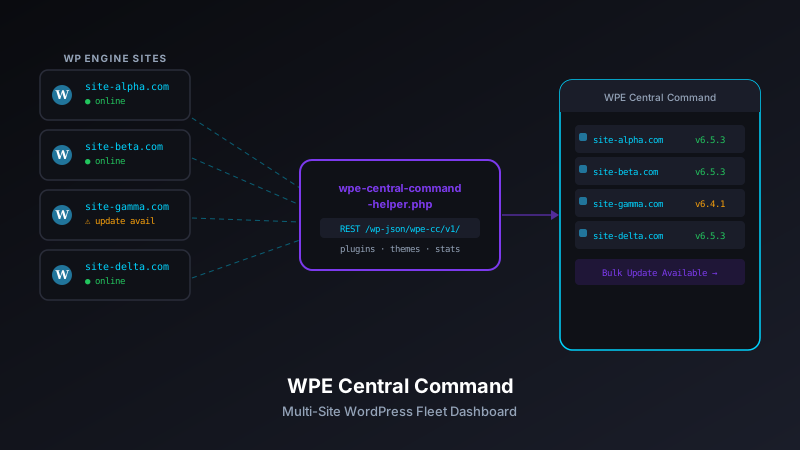
wpe-central-command — a JavaScript web app paired with a lightweight PHP helper plugin — that puts all your WP Engine sites on one screen with bulk operations, environment control, and at-a-glance health monitoring.
The Multi-Site Management Problem
If you manage more than a handful of WordPress sites on WP Engine, you know the friction. Every routine task — checking backup status, switching a site to maintenance mode, confirming which PHP version is running, triggering a cache flush — requires logging into the WP Engine portal, hunting for the right install, navigating to the right panel, and repeating for every site.
For an agency managing 20 or 30 client sites, this isn't just annoying. It's time that compounds. Tasks that should take seconds take minutes. And with the WP Engine dashboard optimized for individual site management rather than fleet-level operations, there's no built-in way to answer simple questions like:
- Which of my sites didn't complete their last backup?
- Which installs are still running PHP 8.1 when I've standardized on 8.3?
- Which sites have WordPress core updates pending?
- Can I flush the cache on all dev environments at once?
WP Engine does expose a REST API, but stitching together that API with meaningful cross-site views requires custom tooling. That's what WPE Central Command is.
What It Does
WPE Central Command is a two-part system:
- wpe-central-command — The JavaScript web app (the "command center") that talks to the WP Engine API and renders your fleet of sites
- wpe-central-command-helper — A lightweight PHP plugin installed on each managed WordPress site that exposes additional site-level data not available through the WP Engine API alone
Together they give you a unified view of all your WP Engine installs with actions you can take without ever opening the WP Engine portal.
The Dashboard
The main interface is a grid of site cards — one per WP Engine install. Each card shows:
- Site name and URL — with a quick-launch link
- Environment type — Production, Staging, or Development, color-coded
- PHP version — flagged amber if it differs from your configured standard
- WordPress version — flagged if updates are available (via the helper plugin)
- Last backup status — green for success, red for failure or missing
- Cache status — EverCache state and last flush time
The grid view is designed to be scanned, not read. At a glance you can see which sites need attention.
Bulk Operations
Individual site cards are useful. Bulk operations are where Central Command earns its name.
Select multiple sites with checkboxes and run operations across all of them simultaneously:
- Flush cache — Purge EverCache on selected sites
- Trigger backup — Kick off an on-demand backup checkpoint
- Enable/disable maintenance mode — Via the helper plugin
- Export status report — Generate a CSV summary of selected sites for reporting or handoff
Operations run in parallel against the WP Engine API. A progress log updates in real-time so you can see each request succeed or fail as it completes.
The Helper Plugin
The WP Engine REST API covers hosting-level data well — installs, environments, domains, backups, cache. What it can't tell you is what's happening inside WordPress itself: active plugins, theme, WordPress version, scheduled cron jobs, disk usage by content type.
The wpe-central-command-helper PHP plugin fills this gap. It's a minimal WordPress plugin that:
- Registers a protected REST endpoint at
/wp-json/wpe-cc/v1/status - Returns a JSON payload of WordPress-level site data
- Authenticates requests using a shared secret configured in both the plugin and the dashboard
// Example response from the helper plugin
{
  "wp_version": "6.8.1",
  "active_plugins": 14,
  "theme": "GeneratePress",
  "updates_available": {
    "core": false,
    "plugins": 2,
    "themes": 0
  },
  "maintenance_mode": false,
  "cron_next_run": "2026-03-24T03:00:00Z",
  "upload_dir_size_mb": 842
}
The dashboard merges this WordPress-level data with the WP Engine API data to build each site card. The combined picture is significantly more useful than either source alone.
Authentication and Security
The dashboard authenticates with WP Engine using API credentials (an API key/secret pair from the WP Engine User Portal). These are stored as environment variables and never exposed client-side.
The helper plugin uses a separate shared secret for each site — a long random string set via wp-config.php or the plugin settings page. Requests to the helper endpoint that don't include a valid Authorization header are rejected with a 401.
This two-credential model means the dashboard app and the helper plugin have independent security boundaries. Compromising one doesn't expose the other.
Architecture
The JavaScript app is deliberately simple:
- Vanilla JS — No framework. The app is a single HTML file with modular JS. It runs entirely in the browser and makes API calls through a thin proxy endpoint to avoid CORS issues and keep credentials server-side.
- Node.js proxy — A small Express server handles WP Engine API calls and helper plugin requests. The browser talks to the proxy; the proxy talks to the world.
- No database — Site configurations are stored in a JSON file. For most use cases, a database is unnecessary overhead.
// sites.json — your fleet configuration
[
  {
    "name": "Client A - Production",
    "install": "clienta",
    "environment": "production",
    "helper_url": "https://clienta.com",
    "helper_secret": "your-shared-secret-here"
  },
  {
    "name": "Client A - Staging",
    "install": "clienta-staging",
    "environment": "staging",
    "helper_url": "https://staging.clienta.com",
    "helper_secret": "staging-shared-secret"
  }
]
Getting Started
# Clone the dashboard
git clone https://github.com/josefresco/wpe-central-command.git
cd wpe-central-command

# Install dependencies
npm install

# Configure environment
cp .env.example .env
# Set WPE_API_USER and WPE_API_PASSWORD in .env

# Configure your sites
cp sites.example.json sites.json
# Add your WP Engine installs to sites.json

# Start the server
npm start
Then install the helper plugin on each WordPress site:
# Clone the helper plugin
git clone https://github.com/josefresco/wpe-central-command-helper.git

# Copy to your WordPress plugins directory, then activate
# Add to wp-config.php:
define('WPE_CC_SECRET', 'your-shared-secret-here');
Real-World Use Cases
A few scenarios where Central Command saves meaningful time:
Monthly Maintenance Runs
For agencies doing monthly WordPress maintenance, the usual flow is: log in, check for updates, apply updates, verify, move to next site. With Central Command, the "check for updates" step across 20 sites is a single page load. You can prioritize which sites need attention immediately instead of working blindly in sequence.
Incident Response
When something goes wrong — a plugin conflict, a cache issue, an unexpected maintenance window — you want answers fast. Central Command's real-time status view lets you confirm which sites are affected and take action (flush cache, toggle maintenance mode) without the portal context-switching overhead.
Pre-Launch Checklists
Before promoting staging to production, the helper plugin data confirms: correct WordPress version, no pending plugin updates, maintenance mode off, recent backup completed. It's a quick sanity check without logging into each environment individually.
What It Doesn't Do
WPE Central Command is a management and visibility tool — not a deployment pipeline. It doesn't:
- Push code changes between environments (use WP Engine's push/pull for that)
- Manage DNS or SSL certificates
- Replace direct WP Engine portal access for billing or account management
- Work with non-WP Engine WordPress hosts
It does one thing well: give you a single, actionable view of your WP Engine fleet.
Lessons Learned
A few things that came up during development:
- API rate limits matter at scale. The WP Engine API has rate limits. Fetching data for 30 sites in parallel can hit those limits. The proxy now batches requests and staggers them to stay within limits.
- The helper plugin needs to be lightweight. Every page load on a managed site runs the helper's registered hooks. I was careful to only run the status endpoint logic on authenticated API requests, not on every WordPress request.
- Shared secrets need rotation tooling. Rotating secrets across 20 sites manually is the kind of chore that doesn't get done. I added a helper script that generates new secrets and outputs the
wp-config.phpsnippet for each site alongside the updatedsites.jsonentries. - Parallel operations need a progress UI. Firing 20 simultaneous API calls and waiting in silence is a bad experience. The real-time log was added after the first demo where everything looked frozen for 4 seconds.
Conclusion
WPE Central Command started as a personal productivity tool and turned into something I use every day for client work. The WP Engine API is well-designed, and pairing it with the helper plugin gives a complete picture that neither source provides on its own.
If you manage multiple WP Engine sites and spend meaningful time on routine housekeeping tasks, the setup investment pays off quickly. The source for both the dashboard and the helper plugin is on GitHub — built to be read, forked, and adapted to your own site configurations.