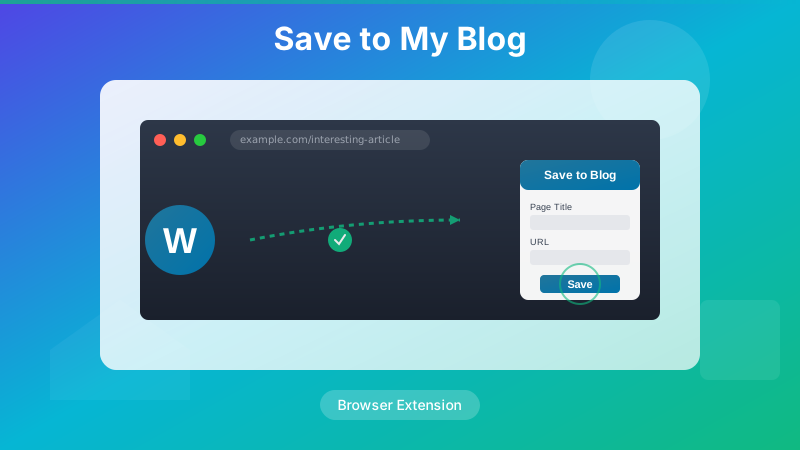
The original Save to My Blog post focused on what the extension does and why I built it. This one is about how it works — the Chrome extension architecture, the Manifest V3 constraints that shaped the design, and the specific choices I made around the WordPress REST API integration.
Why Manifest V3 Changes Everything
Chrome extensions have two major manifest versions in active use: Manifest V2 (MV2) and Manifest V3 (MV3). Google's long push to deprecate MV2 means any new extension should target MV3. The most significant breaking change for extensions like Save to My Blog is the removal of persistent background pages.
In MV2, a background page was a long-lived HTML page that ran JavaScript continuously. You could store state in memory, keep connections open, and run code whenever you liked. Extensions like Who Dis relied on this model.
In MV3, the background page is replaced by a service worker. Service workers are event-driven and ephemeral — Chrome spins them up to handle an event, then terminates them. This has two important implications for Save to My Blog:
- No persistent in-memory state — anything the service worker needs to remember between events must be written to
chrome.storage, not a variable - No DOM access — service workers run outside any document context, so no
window, nodocument, no DOM APIs
The Three-File Architecture
Save to My Blog is deliberately minimal. The entire extension is three JavaScript files:
- popup.js — runs in the toolbar popup, captures current tab data, sends a message to the service worker
- background.js — the MV3 service worker, receives the message, calls the WordPress REST API
- options.js — runs in the settings page, reads and writes config to
chrome.storage.sync
The manifest declares them like this:
{
  "manifest_version": 3,
  "name": "Save to My Blog",
  "version": "1.3.0",
  "permissions": ["activeTab", "storage", "scripting"],
  "background": {
    "service_worker": "background.js"
  },
  "action": {
    "default_popup": "popup.html",
    "default_icon": "icons/icon48.png"
  },
  "options_ui": {
    "page": "options.html",
    "open_in_tab": true
  }
}
The key line is "service_worker": "background.js". In MV2 this would have been "scripts": ["background.js"] under a "background" key with "persistent": false (or true). MV3 drops the persistent flag entirely — the service worker is always non-persistent.
Capturing the Current Tab
When the user clicks the extension icon, Chrome opens popup.html and runs popup.js. The popup needs three things from the current tab:
- The page URL
- The page title
- Any text the user has selected (for the post excerpt)
The URL and title come from the chrome.tabs API. The selected text requires injecting a small script into the page via chrome.scripting.executeScript:
// popup.js
async function getTabData() {
  const [tab] = await chrome.tabs.query({ active: true, currentWindow: true });

  // Inject script to grab selected text
  const [{ result: selectedText }] = await chrome.scripting.executeScript({
    target: { tabId: tab.id },
    func: () => window.getSelection()?.toString() ?? ''
  });

  return {
    url: tab.url,
    title: tab.title,
    excerpt: selectedText
  };
}
The scripting permission in the manifest is required for executeScript. In MV2, extensions often used tabs.executeScript directly — MV3 moved this to the dedicated scripting API with stricter permission requirements.
Message Passing: Popup to Service Worker
The popup doesn't call the WordPress API directly. Instead it sends a message to the background service worker and waits for a response. This separation keeps network calls out of the popup lifecycle — the popup can close and the API call will still complete.
// popup.js — send the save request
async function savePost(tabData, saveAsDraft) {
  const response = await chrome.runtime.sendMessage({
    action: 'saveToWordPress',
    data: { ...tabData, draft: saveAsDraft }
  });

  if (response.success) {
    showSuccess(response.postUrl);
  } else {
    showError(response.error);
  }
}
// background.js — service worker receives the message
chrome.runtime.onMessage.addListener((message, sender, sendResponse) => {
if (message.action === 'saveToWordPress') {
// Must return true to keep the message channel open for async response
handleSaveToWordPress(message.data).then(sendResponse);
return true;
}
});The return true at the end of the listener is critical. Without it, Chrome closes the message channel immediately after the listener returns, before the async handleSaveToWordPress promise resolves. The popup's sendMessage call would never receive its response.
Calling the WordPress REST API
The service worker handles the actual API call. It reads credentials from chrome.storage.sync, constructs the post payload, and calls the WordPress REST API's /wp/v2/posts endpoint:
// background.js
async function handleSaveToWordPress({ url, title, excerpt, draft }) {
const config = await chrome.storage.sync.get(['wpUrl', 'wpUser', 'wpAppPassword']);
if (!config.wpUrl || !config.wpUser || !config.wpAppPassword) {
return { success: false, error: 'Extension not configured. Open settings to add your WordPress credentials.' };
}
const credentials = btoa(`${config.wpUser}:${config.wpAppPassword}`);
const apiEndpoint = `${config.wpUrl.replace(/\/$/, '')}/wp-json/wp/v2/posts`;
const postBody = {
title: title,
content: ``,
excerpt: excerpt || '',
status: draft ? 'draft' : 'publish',
format: 'link'
};
try {
const res = await fetch(apiEndpoint, {
method: 'POST',
headers: {
'Content-Type': 'application/json',
'Authorization': `Basic ${credentials}`
},
body: JSON.stringify(postBody)
});
if (!res.ok) {
const err = await res.json();
return { success: false, error: err.message ?? `HTTP ${res.status}` };
}
const post = await res.json();
return { success: true, postUrl: post.link };
} catch (e) {
return { success: false, error: e.message };
}
}A few things worth noting here:
- Credentials live in
chrome.storage.sync, not hardcoded or in localStorage.syncstorage syncs across the user's Chrome profile, so setting up the extension once makes it available on all their devices. - Basic auth with Application Passwords — the credentials string is
username:application_password, base64 encoded. WordPress Application Passwords (introduced in WordPress 5.6) are separate from the account password and can be revoked individually. - Post format is
link— WordPress link posts are specifically designed for curated links. Most themes display them with a special treatment. - Error messages bubble up from the WordPress API response body, not just the HTTP status code, so the popup can show the user what actually went wrong.
Storing Configuration Securely
The options page lets the user enter their WordPress URL, username, and Application Password. These are written directly to chrome.storage.sync. I considered chrome.storage.session (which clears on browser close) or encrypting the password, but ultimately landed on sync unencrypted for a pragmatic reason: the Application Password is already a revocable, limited-scope credential. Treating it like a secret key would add complexity without meaningfully improving security — if someone has access to the user's Chrome profile, they have bigger problems than a WordPress Application Password.
// options.js — save config
document.getElementById('save-btn').addEventListener('click', async () => {
  const config = {
    wpUrl: document.getElementById('wp-url').value.trim(),
    wpUser: document.getElementById('wp-user').value.trim(),
    wpAppPassword: document.getElementById('wp-app-password').value.trim()
  };

  // Basic validation before saving
  if (!config.wpUrl.startsWith('http')) {
    showError('WordPress URL must start with http:// or https://');
    return;
  }

  await chrome.storage.sync.set(config);
  showSuccess('Settings saved');
});
The MV3 Service Worker Gotcha I Hit
During development I ran into a frustrating issue: the service worker would handle the first message fine, then fail silently on subsequent ones after a few minutes of inactivity. The root cause was Chrome terminating the idle service worker — and since I'd tried to cache the config object in a module-level variable, it was gone when the worker restarted.
The fix was straightforward: always read from chrome.storage at the start of each handler, never rely on in-memory state. The extra storage read costs a few milliseconds but is invisible to the user, and the handler becomes stateless and restartable:
// Wrong: module-level cache that disappears when worker restarts
let cachedConfig = null;

async function handleSave(data) {
  if (!cachedConfig) cachedConfig = await chrome.storage.sync.get(...);
  // ...
}

// Right: read fresh from storage every time
async function handleSave(data) {
  const config = await chrome.storage.sync.get(['wpUrl', 'wpUser', 'wpAppPassword']);
  // ...
}
Testing Without the Chrome Extension Toolchain
Chrome extension development has historically been tedious to test — you reload the extension, click around, check the service worker DevTools console. For Save to My Blog, I extracted the WordPress API logic into a pure function (handleSaveToWordPress) that takes config and post data as arguments and returns a result object. This made it testable with Node.js and a mocked fetch without needing a browser at all:
// test/api.test.js (Node.js)
import { buildPostPayload, parseApiError } from '../src/api.js';

test('draft flag sets status to draft', () => {
  const payload = buildPostPayload({ title: 'Test', url: 'https://example.com', draft: true });
  expect(payload.status).toBe('draft');
});

test('parseApiError returns message from WP error body', () => {
  const error = parseApiError({ message: 'rest_cannot_create', data: { status: 401 } });
  expect(error).toContain('rest_cannot_create');
});
Keeping the API logic pure and side-effect-free — no fetch calls, no chrome.* calls — made unit testing practical without a headless Chrome setup.
What's Different in v1.3
The March 2026 update (v1.3) added draft mode, better error messaging, and excerpt handling. Architecturally, the main change was the config validation on the options page — checking that the WordPress URL returns a valid /wp-json/ response before saving, rather than letting users discover bad config at save time:
// options.js — validate WP URL before saving
async function validateWordPressUrl(url) {
  try {
    const res = await fetch(`${url.replace(/\/$/, '')}/wp-json/`);
    const json = await res.json();
    return json.namespaces?.includes('wp/v2') ?? false;
  } catch {
    return false;
  }
}
If the URL check fails, the options page shows a warning but still allows saving — the user might be on a VPN or have a non-standard WordPress setup. It's a hint, not a blocker.
Final Thoughts
Building a Manifest V3 extension for the first time surfaces a lot of gotchas that MV2 developers don't expect: no persistent state, no DOM in service workers, the return true pattern for async message responses. Once you understand the mental model — the service worker is a stateless event handler, storage is the only state that survives — the architecture becomes clean and predictable.
Save to My Blog is a small tool, but it's one I use daily. The two-click workflow it enables has made link curation a habit rather than a chore. The full source is on GitHub if you want to dig into the implementation or adapt it for your own use.