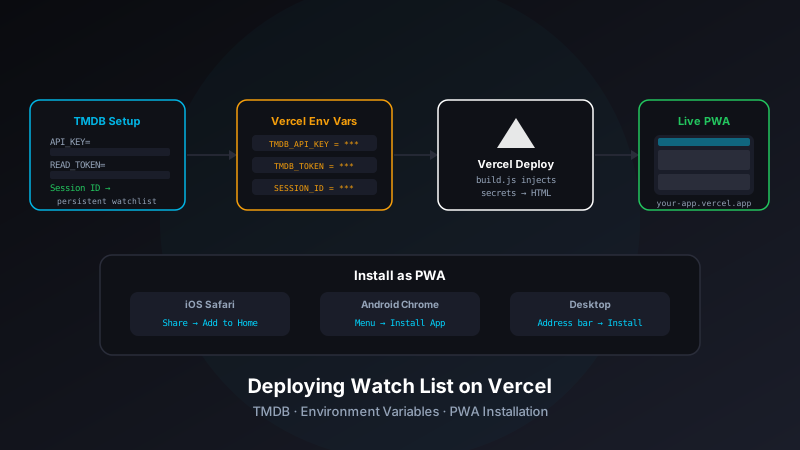
build.js, a Vercel project with those values set as environment variables, and a one-time trigger of the build hook. This guide takes you from fork to installable app in about 15 minutes, including the non-obvious TMDB session ID step that isn't documented in the README.
What Watch List Is
Watch List is a single-file progressive web app for tracking movies and TV shows you want to watch. No ads, no tracking, no subscription — just a personal watchlist backed by The Movie Database (TMDB) API for search, poster images, and streaming availability data.
The launch post covers the feature set; the internals post covers the architecture. This post covers deployment — specifically, how to get your own instance running on Vercel with your own TMDB credentials, and how to install it as a native-feeling PWA on any device.
Prerequisites
- A free TMDB account
- A free Vercel account
- A GitHub account (Vercel imports from GitHub)
- Node.js installed locally (only needed if you want to run the build script locally)
No server, no database, no paid tier of anything. TMDB's free API tier is generous — the dashboard load is a handful of requests per session and doesn't approach the rate limits for personal use.
Step 1: Fork the Repo
Fork josefresco/watch-list to your own GitHub account. You need your own fork because Vercel will deploy from your repo, and you'll be configuring environment variables in your Vercel project — not the original.
The repo structure is intentionally minimal:
watch-list/
├── index.html        # The entire application (pre-build template)
├── build.js          # Node.js script that injects credentials at deploy time
├── vercel.json       # Vercel deployment config
├── favicon.svg
└── apple-touch-icon.png
The index.html in the repo contains placeholder strings for the credentials. build.js reads environment variables, substitutes the placeholders, and writes the final index.html. Vercel runs this script as part of the build step, so the deployed file has real credentials baked in — but those credentials never touch version control.
Step 2: Get Your TMDB Credentials
You need three values from TMDB. Two come from the API settings page; one requires a separate API call. Here's what each one is for:
API Key
Log in to TMDB, go to Settings → API, and request an API key (choose "Developer" use type). The key is a 32-character hex string. This is used for movie search and metadata requests.
Read Access Token (v4 Bearer Token)
On the same API settings page, below the API key, is the API Read Access Token — a longer JWT-format token used for v4 API endpoints. You'll need this for watchlist operations. Copy it; you won't be able to view it again without regenerating it.
Session ID (The Non-Obvious One)
The session ID is what ties your watchlist to your TMDB account. It's not in the settings UI — you generate it through a three-step OAuth-style flow:
- Create a request token:
curl -X POST \
  "https://api.themoviedb.org/3/authentication/token/new" \
  -H "Authorization: Bearer YOUR_READ_ACCESS_TOKEN" \
  -H "Content-Type: application/json"
This returns a
request_tokenstring. - Approve the request token:
Open this URL in your browser, replacingREQUEST_TOKEN:https://www.themoviedb.org/authenticate/REQUEST_TOKENTMDB will ask you to approve the token for your account. Click Allow. You'll be redirected to a TMDB page confirming approval. The token is now authorized.
- Exchange for a session ID:
curl -X POST \
  "https://api.themoviedb.org/3/authentication/session/new" \
  -H "Authorization: Bearer YOUR_READ_ACCESS_TOKEN" \
  -H "Content-Type: application/json" \
  -d '{"request_token": "YOUR_REQUEST_TOKEN"}'
The response contains your
session_id. Copy it — this is the value that lets Watch List read and write your TMDB watchlist.
Session IDs don't expire under normal use. As long as you don't revoke it from TMDB's settings, the same session ID will work indefinitely. Store it in your password manager alongside the other two credentials.
Step 3: Create a Vercel Project
In Vercel, create a new project and import your forked repository. On the configuration screen, before deploying, set three environment variables:
TMDB_API_KEY         = your-32-char-api-key
TMDB_READ_TOKEN      = your-jwt-read-access-token
TMDB_SESSION_ID      = your-session-id
These names match what build.js reads from process.env. If you rename them, update build.js accordingly.
For the Build Command, set it to:
node build.jsFor the Output Directory, set it to . (the project root) — the build script writes the final index.html in place, not to a dist directory.
Click Deploy. Vercel runs node build.js, which reads the environment variables and substitutes them into index.html. The deployed file is the fully-credentialed app. Your fork on GitHub still contains only the placeholder strings.
How build.js Works
It's worth understanding what the build script does, because it explains why Vercel is the recommended deployment target (and why you can't just open index.html directly from your local machine):
// build.js (simplified)
const fs = require('fs');

const apiKey     = process.env.TMDB_API_KEY;
const readToken  = process.env.TMDB_READ_TOKEN;
const sessionId  = process.env.TMDB_SESSION_ID;

if (!apiKey || !readToken || !sessionId) {
    console.error('Missing required environment variables');
    process.exit(1);
}

let html = fs.readFileSync('index.html', 'utf8');

html = html
    .replace('__TMDB_API_KEY__', apiKey)
    .replace('__TMDB_READ_TOKEN__', readToken)
    .replace('__TMDB_SESSION_ID__', sessionId);

fs.writeFileSync('index.html', html);
console.log('Build complete: credentials injected into index.html');
The script reads the template index.html, performs three string replacements on the placeholder tokens, and writes the result back. Nothing more. This approach means:
- Credentials are never committed to the repo (the template has
__PLACEHOLDERS__, not real values) - The deployed app is a single static file with no runtime secret-handling complexity
- Rotating credentials means updating Vercel's environment variables and triggering a new deployment — no code changes required
If you want to run the app locally, you can set environment variables in your shell and run node build.js before opening index.html in a browser. The internals post covers this and the wider architecture in detail.
Step 4: Configuring Streaming Providers
After your first deployment, you can customize which streaming services appear in the availability display. Two constants near the top of the template control this:
// In index.html (edit before build, or directly in your fork)

// Services you subscribe to — shown prominently
const MY_SERVICES = ['Netflix', 'Max', 'Disney Plus', 'Hulu'];

// Services to exclude entirely — not shown even if available
const EXCLUDED_PROVIDERS = ['Peacock', 'Tubi', 'Pluto TV'];
MY_SERVICES highlights the streaming services you actually use, so you can immediately see whether something is on a platform you have without scanning the full list. EXCLUDED_PROVIDERS removes noise — free ad-supported services or platforms you'd never use.
Provider names must match TMDB's naming exactly (case-sensitive). The full list of provider names can be found in the TMDB API's /watch/providers/movie endpoint, or by searching for any movie and inspecting the streaming availability response in your browser's network tab.
After editing these constants in your fork, commit and push — Vercel will automatically rebuild and redeploy.
Step 5: Install as a PWA
Once deployed, Watch List can be installed on any device for a native-app experience — no app store, no download, no updates to manage.
Desktop (Chrome or Edge)
Visit your Vercel URL in Chrome or Edge. Look for the install icon in the address bar (a computer with a download arrow), or open the browser menu and choose Install Watch List. The app opens in its own window, with no browser chrome — it behaves like a native app.
iOS (Safari)
Safari on iOS is the only way to install PWAs on iPhone and iPad. Open your Vercel URL in Safari, tap the Share button (the box with an upward arrow), and scroll down to Add to Home Screen. The app installs with the Watch List icon and opens in full-screen kiosk mode.
Note: iOS requires Safari specifically — Chrome and Firefox on iOS cannot install PWAs due to Apple's browser engine restrictions.
Android (Chrome)
Open your Vercel URL in Chrome on Android. Chrome will show an install banner at the bottom of the screen, or you can tap the three-dot menu and choose Add to Home Screen. The installed app appears in your app drawer alongside native apps.
Optional: Adult Content PIN
If you want TMDB's adult content to appear in search results, you can enable it in your TMDB account settings and configure an optional PIN in the Watch List settings panel. The PIN gate appears before adult content is displayed — a lightweight parental control for shared devices. Leave the PIN field empty to skip this entirely if it's not relevant for your setup.
Updating Credentials
If you need to rotate your TMDB credentials (say, you regenerated your API key or created a new TMDB session):
- In Vercel, go to your project's Settings → Environment Variables
- Update the relevant variable(s)
- Go to Deployments and click Redeploy on the latest deployment
Vercel re-runs the build script with the new values, and the updated app is live in under a minute. No code changes, no pushing commits.
What You End Up With
After following these steps you have:
- A personal Watch List instance at
your-project.vercel.app(or a custom domain if you configure one) - Your TMDB watchlist synced — movies you add in the PWA appear in your TMDB account and vice versa
- Streaming availability filtered to your services, across all your devices
- An installable app icon on every phone, tablet, and desktop you use
- No ongoing hosting costs, no maintenance, no server to manage
Because the deployment is entirely static — one HTML file on Vercel's CDN — it's as fast as a web app can be. No server round-trips, no database queries. The only network requests are to the TMDB API for search results and streaming availability data.
Troubleshooting
Build fails with "Missing required environment variables"
One or more of TMDB_API_KEY, TMDB_READ_TOKEN, or TMDB_SESSION_ID is not set in your Vercel project environment. Double-check the variable names — they're case-sensitive.
Watchlist operations fail with 401
Your session ID may be invalid or revoked. Generate a new one by repeating Step 2's three-step flow, update the environment variable in Vercel, and redeploy.
Search returns results but no streaming data
Streaming availability is region-specific in TMDB's API. If you're outside the US, check that TMDB is returning US provider data or update the region parameter in the app's fetch calls to match your country.
"Add to Home Screen" doesn't appear on iOS
Make sure you're using Safari, not Chrome or Firefox. iOS only allows PWA installation through Safari.
Conclusion
The main friction point in deploying Watch List is the TMDB session ID — the three-step token flow isn't documented in the repo README, and without the session ID the watchlist functionality doesn't work. Once you have all three credentials and know where to put them, the Vercel deployment is genuinely fast: fork, set three environment variables, click deploy, install the PWA. Done.
The full source is at github.com/josefresco/watch-list. If you run into anything not covered here, open an issue on the repo.