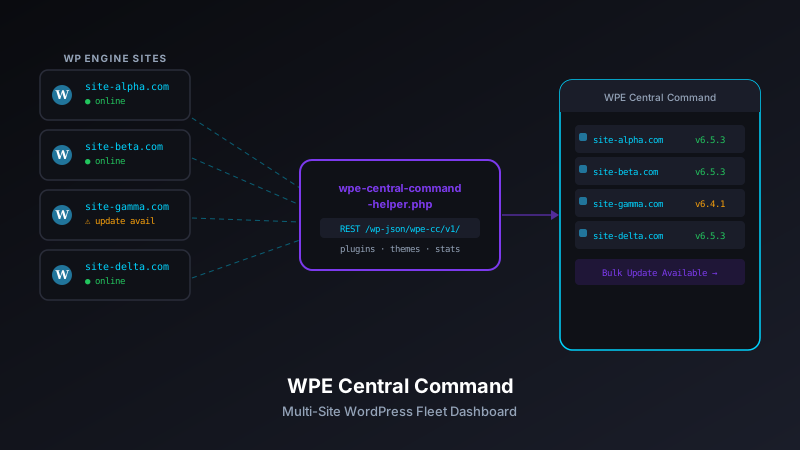
wpe-central-command-helper is the thin PHP plugin installed on each managed site that fills that gap — exposing WordPress version, active plugin count, pending updates, maintenance mode state, and upload directory size through a single secured REST endpoint that the WPE Central Command dashboard queries at page load.
Two APIs, Two Different Views of a WordPress Site
When I built WPE Central Command, the WP Engine REST API gave me everything I needed to know about the hosting layer: environment type, PHP version, backup status, domain configuration, cache state. That's a solid foundation for a fleet management dashboard.
But there's a line the hosting API doesn't cross. It can tell you a site is running PHP 8.3 on a production environment with a successful backup from last night. It cannot tell you:
- Which version of WordPress core is installed
- Whether there are pending plugin or theme updates
- How many active plugins the site is running
- Whether maintenance mode is currently on
- How much disk space the uploads directory is consuming
- When WP-Cron last ran and when it's next scheduled
These are WordPress-level concerns. To answer them, you need something running inside WordPress — hence the helper plugin.
What the Helper Plugin Does
wpe-central-command-helper is a minimal WordPress plugin with a single job: register a protected REST API endpoint that returns a JSON summary of WordPress-level site data. No settings page, no admin menu (beyond an optional configuration screen for the shared secret), no frontend output. It runs silently in the background and responds only to authenticated API requests.
The endpoint lives at:
GET /wp-json/wpe-cc/v1/statusAn authenticated request to that endpoint returns a payload that the Central Command dashboard merges with data from the WP Engine API to build a complete picture of each site.
The Status Payload
Here's what a typical response looks like:
{
  "wp_version": "6.8.1",
  "active_plugins": 14,
  "theme": "GeneratePress",
  "updates_available": {
    "core": false,
    "plugins": 2,
    "themes": 0
  },
  "maintenance_mode": false,
  "cron_next_run": "2026-03-28T03:00:00Z",
  "upload_dir_size_mb": 842,
  "site_url": "https://example.com",
  "admin_email": "admin@example.com",
  "timezone": "America/New_York",
  "timestamp": "2026-03-28T14:22:10Z"
}
Each field in the payload maps to one of the status indicators on the Central Command site card. updates_available.plugins drives the amber badge that appears when a site has pending updates. maintenance_mode toggles the maintenance mode indicator and determines whether the bulk toggle action is shown as "Enable" or "Disable."
How It Collects the Data
The plugin uses standard WordPress functions and APIs — no custom database queries, no external calls, nothing that introduces side effects on the host site.
WordPress Version and Update Status
// WordPress core version
global $wp_version;
$data['wp_version'] = $wp_version;

// Check for available updates
$core_updates = get_site_transient('update_core');
$data['updates_available']['core'] = isset($core_updates->updates)
    && !empty($core_updates->updates)
    && $core_updates->updates[0]->response === 'upgrade';
get_site_transient('update_core') returns whatever update check result WordPress has cached. The plugin doesn't trigger a fresh update check — it reads the existing transient. This keeps the endpoint fast and avoids firing an external HTTP request on every dashboard page load.
Plugin Count and Update Status
// Active plugin count
$active_plugins = get_option('active_plugins', []);
$data['active_plugins'] = count($active_plugins);

// Plugin updates available
$plugin_updates = get_site_transient('update_plugins');
$data['updates_available']['plugins'] = isset($plugin_updates->response)
    ? count($plugin_updates->response)
    : 0;
Same approach: read the cached transient, don't trigger a fresh check. The update count is what matters for the dashboard — the exact list of which plugins have updates is available by navigating directly to the WordPress admin, which is one click from the Central Command site card.
Maintenance Mode
WordPress doesn't have a native maintenance mode flag in the database. The conventional approach is the presence of a .maintenance file in the WordPress root. The helper checks for that:
$data['maintenance_mode'] = file_exists(ABSPATH . '.maintenance');When the Central Command dashboard sends a "enable maintenance mode" bulk action, it calls a separate endpoint on the helper plugin that creates or removes that file. The status endpoint then accurately reflects the current state on the next dashboard refresh.
Upload Directory Size
function wpe_cc_dir_size($path) {
    $size = 0;
    foreach (new RecursiveIteratorIterator(
        new RecursiveDirectoryIterator($path, FilesystemIterator::SKIP_DOTS)
    ) as $file) {
        $size += $file->getSize();
    }
    return round($size / 1048576, 1); // Return in MB
}

$upload_dir = wp_upload_dir();
$data['upload_dir_size_mb'] = wpe_cc_dir_size($upload_dir['basedir']);
This is the one field that can be slow on large sites with thousands of media files. On the first few deploys I found it adding 2-3 seconds to the response time on sites with 5GB+ upload directories. The fix was caching the result in a transient with a 1-hour TTL — upload directory size is useful context data, not something that needs to be live to the second.
Authentication: Shared Secrets
The status endpoint returns sensitive site data. It needs to be accessible to the Central Command dashboard from outside the site but not to the general public. WordPress's built-in cookie authentication doesn't work for cross-origin requests from a separate app, and OAuth is overkill for a self-hosted internal tool.
The solution is a shared secret: a long random string configured in both the WordPress site and the Central Command dashboard. Every request to the helper endpoint must include the secret in an Authorization header:
Authorization: Bearer your-shared-secret-hereOn the WordPress side, the plugin validates this on every request:
function wpe_cc_check_auth(WP_REST_Request $request) {
    $configured_secret = defined('WPE_CC_SECRET') ? WPE_CC_SECRET : '';

    if (empty($configured_secret)) {
        return new WP_Error(
            'wpe_cc_not_configured',
            'Helper plugin secret is not configured.',
            ['status' => 503]
        );
    }

    $auth_header = $request->get_header('authorization');
    $token = str_replace('Bearer ', '', $auth_header ?? '');

    if (!hash_equals($configured_secret, $token)) {
        return new WP_Error(
            'wpe_cc_unauthorized',
            'Invalid authorization token.',
            ['status' => 401]
        );
    }

    return true;
}

register_rest_route('wpe-cc/v1', '/status', [
    'methods'             => 'GET',
    'callback'            => 'wpe_cc_status_handler',
    'permission_callback' => 'wpe_cc_check_auth',
]);
Two details worth noting here:
hash_equals()instead of===— Timing-safe string comparison prevents timing attacks that could be used to guess the secret one character at a time.- 503 for unconfigured secret — If the plugin is activated but
WPE_CC_SECREThasn't been set yet, the endpoint returns a 503 (service unavailable) rather than a 401 (unauthorized). This makes misconfiguration distinguishable from a wrong secret in the Central Command error log.
Configuring the Secret: wp-config.php vs Settings Page
The shared secret can be set two ways:
Option 1: wp-config.php (Recommended)
// Add to wp-config.php, before "That's all, stop editing!"
define('WPE_CC_SECRET', 'paste-your-generated-secret-here');
This keeps the secret out of the WordPress database and out of the admin UI — it can't be accidentally revealed by a plugin that reads options, and it won't be included in a database export. For production sites, this is the right approach.
Option 2: Plugin Settings Page
For convenience during initial setup, the plugin includes a minimal settings page under Settings → WPE Central Command that lets you paste the secret into a password field. The value is stored in the WordPress options table (encrypted at rest using WordPress's built-in secrets, but still database-accessible). Once a site is configured, I recommend migrating to wp-config.php and deleting the stored option.
Keeping the Plugin Footprint Small
Every active WordPress plugin adds overhead to every page load, even if it's just hook registration. I was deliberate about keeping the helper's footprint minimal:
- REST route registration only on
rest_api_init— The plugin hooks intorest_api_initto register the endpoint, notinit. The route registration only runs when WordPress initializes the REST API stack — not on frontend page loads. - No database queries outside of authenticated API requests — The status handler only runs when an authenticated GET request hits the endpoint. None of the plugin's data-collection code runs on regular WordPress requests.
- No enqueued scripts or styles — The plugin has no frontend output whatsoever.
- No activation/deactivation hooks with side effects — Activating or deactivating the plugin doesn't modify site options, create database tables, or change any site configuration.
The result is a plugin that's effectively invisible to site visitors and adds no measurable overhead to page load time.
Installation
# Clone the plugin into your WordPress plugins directory
cd /path/to/wordpress/wp-content/plugins
git clone https://github.com/josefresco/wpe-central-command-helper.git

# Activate via WP CLI (or WordPress admin)
wp plugin activate wpe-central-command-helper
Then set the shared secret in wp-config.php:
define('WPE_CC_SECRET', 'replace-with-a-long-random-string');Generate a secure secret with:
openssl rand -base64 48Then add the same secret and the site's URL to your sites.json in the Central Command dashboard:
{
  "name": "My Site - Production",
  "install": "mysite",
  "environment": "production",
  "helper_url": "https://mysite.com",
  "helper_secret": "the-same-secret-from-wp-config"
}
Secret Rotation
Rotating secrets across a fleet of 20+ sites manually is the kind of maintenance task that doesn't get done — until there's a reason it needs to. The Central Command dashboard includes a helper script that automates the rotation process:
# Generate new secrets and output configuration snippets
node scripts/rotate-secrets.js

# Output for each site:
# Site: My Site - Production
# New secret: abc123...
# wp-config.php line: define('WPE_CC_SECRET', 'abc123...');
# sites.json entry: { "helper_secret": "abc123..." }
# Updated sites.json written to sites.json.rotated
The script generates new secrets, outputs the wp-config.php snippet for each site, and writes an updated sites.json file. You apply the wp-config.php changes to each site (via SFTP or WP Engine's file manager), then rename sites.json.rotated to sites.json. Once the new secrets are live, the old ones stop working.
What I Got Wrong the First Time
The first version of the helper used WordPress application passwords instead of a shared secret — it seemed like the "proper WordPress way" since application passwords are built into WordPress 5.6+.
The problem: application passwords are tied to a specific WordPress user account. That means:
- Each site needs a dedicated WordPress user for the dashboard
- If that user is deleted or their password reset, the connection breaks
- Application password management is buried in the user profile, not in a visible plugin setting
- Rotating credentials requires navigating to each site's admin and revoking/regenerating the application password
The shared secret approach avoids all of this. It's independent of WordPress users, easy to configure via wp-config.php, and easy to rotate with a script. For a server-to-server internal tool, it's the right trade-off.
Extending the Payload
The status payload is designed to be straightforward to extend. Adding a new field means adding a key to the array returned by the status handler:
// Example: Add WooCommerce order count if WooCommerce is active
if (class_exists('WooCommerce')) {
    $data['woocommerce'] = [
        'active'      => true,
        'order_count' => wc_get_order_count('processing'),
    ];
}
Then update the Central Command dashboard to read and display the new field. The separation between the plugin (data source) and the dashboard (display layer) means each side can evolve independently.
The Bigger Pattern
The helper plugin is a specific implementation of a broader pattern that comes up often in WordPress agency work: the platform you're building on top of doesn't expose everything you need, so you add a thin layer inside it that does.
The same pattern applies whenever you need to:
- Surface WordPress data to an external monitoring or reporting tool
- Trigger WordPress actions (like maintenance mode or cache clearing) from an external dashboard
- Expose site health data without requiring direct database or file system access
A lightweight REST plugin — one endpoint, one auth check, one JSON payload — is usually the cleanest solution. It's explicit about what data it exposes, it's auditable, and it's removable without side effects.
Conclusion
The WPE Central Command helper plugin is about 200 lines of PHP. It does one thing: answer the question "what's happening inside WordPress on this site, right now?" with a single authenticated API call. Small as it is, it's the piece that makes the Central Command dashboard actually useful — the difference between a hosting-layer status board and a complete picture of every site in your fleet.
Both the helper plugin and the dashboard are on GitHub. If you manage a fleet of WP Engine sites, the setup is worth the hour it takes — the time you'll get back on routine maintenance tasks compounds quickly.