Family Dashboard v3.32: Service Workers, Offline Caching, and Surviving Pi Reboots

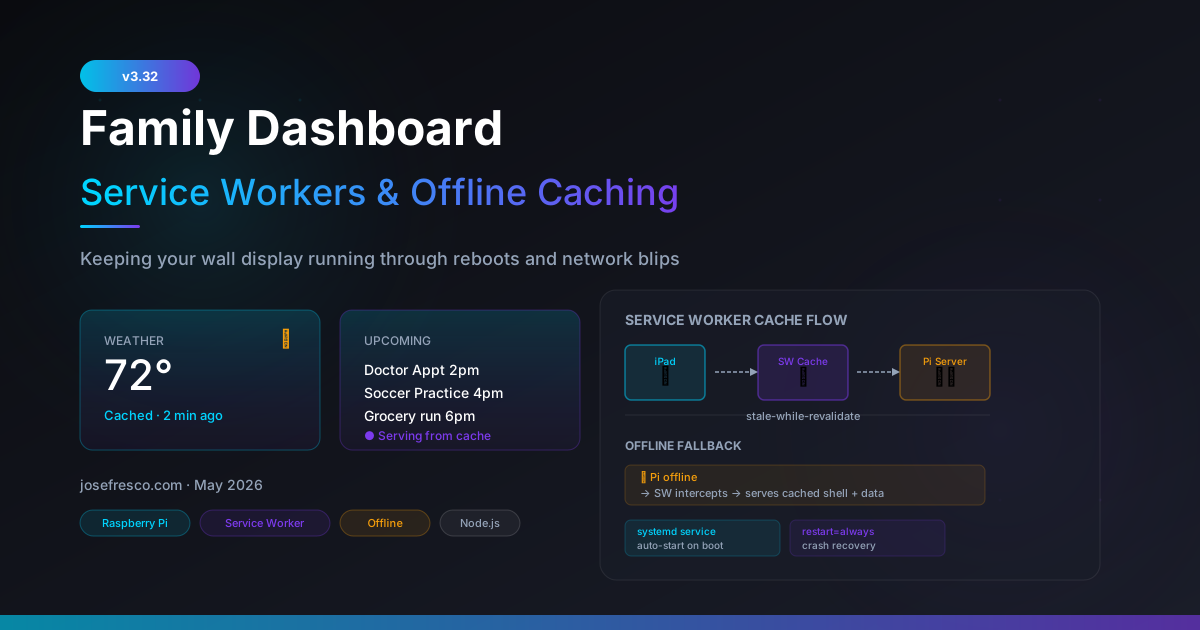
Family Dashboard v3.32 service worker cache flow diagram showing offline caching and systemd auto-start
TL;DR: Family Dashboard v3.32 registers a service worker that caches the app shell and uses a stale-while-revalidate strategy for weather and calendar data. When the Pi is unreachable — rebooting, updating packages, or just dropped from the network — the iPad keeps displaying the last known data instead of a blank screen. A systemd unit file handles auto-start on boot and automatic restart on crash, replacing the previous pm2 recommendation.

The Problem v3.31 Created

Moving Family Dashboard to a self-hosted Express server on Raspberry Pi was the right call — credentials off the client, no Vercel cold starts, full control over the runtime. But it introduced a new failure mode that Vercel never had: the server can be genuinely unreachable.

With Vercel, a serverless function either responds or returns a 5xx. The static files were always served from Vercel's CDN regardless of what happened to the function. Move to a Pi, and a sudo apt upgrade that triggers a reboot takes the whole thing offline for 90 seconds. The iPad on the kitchen wall goes blank. Someone asks "why is the dashboard broken?" The answer — "the Pi is rebooting" — is not the experience a wall display should deliver.

v3.32 addresses this in two layers. The service worker handles the client-side resilience: cache what you can, serve stale data when the server is gone. The systemd unit handles the server-side resilience: come back up automatically, without intervention, as fast as possible.

Registering the Service Worker

The service worker file lives at sw.js in the project root, which puts it in the highest-level scope the server allows. Registration is straightforward — added to the bottom of app-client.js after the main initialization:

if ('serviceWorker' in navigator) {
    window.addEventListener('load', () => {
        navigator.serviceWorker.register('/sw.js')
            .then(reg => {
                console.log('[SW] registered, scope:', reg.scope);
            })
            .catch(err => {
                console.warn('[SW] registration failed:', err);
            });
    });
}

The load event timing matters here. Registering during DOMContentLoaded can compete with page resources and slow down initial paint on the older iPads the dashboard targets. Waiting for load gives the main thread a chance to finish first.

The App Shell Cache

The first thing the service worker does on install is pre-cache the app shell — the HTML, CSS, and JavaScript files that make up the dashboard skeleton. These files don't change between server restarts, so they're safe to cache aggressively:

const CACHE_NAME = 'family-dash-v1';
const APP_SHELL = [
    '/',
    '/index.html',
    '/style.css',
    '/app-client.js',
    '/caldav-client.js',
    '/weather-client.js',
    '/manifest.json'
];

self.addEventListener('install', event => {
    event.waitUntil(
        caches.open(CACHE_NAME).then(cache => {
            return cache.addAll(APP_SHELL);
        })
    );
    self.skipWaiting();
});

skipWaiting() means the new service worker activates immediately rather than waiting for all existing clients to close. For a wall display that might stay open for days, waiting for the old worker to be "naturally" replaced would mean the new cache never takes effect until someone manually refreshes the iPad — which defeats the purpose.

Stale-While-Revalidate for API Responses

The more interesting part is how the service worker handles the API routes — /api/config, /api/weather, and /api/calendar. For these, the right strategy is stale-while-revalidate: return what's in cache immediately (fast, always works), then fetch fresh data in the background and update the cache for next time.

const API_ROUTES = ['/api/config', '/api/weather', '/api/calendar'];

self.addEventListener('fetch', event => {
    const url = new URL(event.request.url);
    const isApiRoute = API_ROUTES.some(r => url.pathname.startsWith(r));

    if (isApiRoute) {
        event.respondWith(staleWhileRevalidate(event.request));
        return;
    }

    // App shell: cache-first
    event.respondWith(
        caches.match(event.request).then(cached => {
            return cached || fetch(event.request);
        })
    );
});

async function staleWhileRevalidate(request) {
    const cache = await caches.open(CACHE_NAME);
    const cached = await cache.match(request);

    const fetchPromise = fetch(request)
        .then(response => {
            if (response.ok) {
                cache.put(request, response.clone());
            }
            return response;
        })
        .catch(() => null);

    return cached || await fetchPromise;
}

The key line is the last one: return cached || await fetchPromise. If there's a cached response, it's returned immediately. The background fetch still happens — the cache gets updated for next time — but the client doesn't wait for it. If there's no cached response yet (first load, or cache was cleared), we wait for the network.

What happens when both cached is null and the fetchPromise rejects (network unreachable, server down)? fetchPromise catches the error and returns null. The service worker returns null as the response. The main app handles a null API response the same way it handles a 500 — it leaves the last rendered data in place and schedules a retry. The widget doesn't clear; it just stops refreshing until the server comes back.

What Gets Cached and for How Long

Different data types have different staleness tolerances:

  • App shell (/, CSS, JS) — indefinitely, updated only when the service worker itself updates
  • /api/config — long-lived; the server location, timezone, and CalDAV account list rarely change
  • /api/weather — weather data is fetched every 10 minutes. A cached response is useful for up to an hour before it becomes misleading. Showing "72°F, Partly Cloudy" from an hour ago is fine; showing it from yesterday is not.
  • /api/calendar — calendar events are cached per accountId. Showing today's events from a 30-minute-old cache is acceptable. The cache is busted on the next successful fetch.

The service worker doesn't implement TTL eviction itself — that complexity isn't worth it for this use case. Instead, each widget in the dashboard stamps a data-fetched-at attribute on its container when it successfully renders fresh data. A small client-side check runs every 5 minutes: if the most recent fetch timestamp is more than N minutes old, the widget shows a subtle "Last updated X minutes ago" indicator rather than pretending the data is live.

// In weather-client.js
function renderWeather(data, fromCache = false) {
    container.dataset.fetchedAt = Date.now();

    if (fromCache) {
        const age = Math.round((Date.now() - cachedAt) / 60000);
        statusEl.textContent = `Cached · ${age} min ago`;
        statusEl.style.color = 'var(--neural-accent)';
    } else {
        statusEl.textContent = '';
    }

    // ... render temperature, conditions, forecast
}

The "cached" indicator only appears when the data is actually stale — during a normal refresh cycle the status line stays empty. The family doesn't need to know the plumbing is working; they only need to know when it isn't.

Cache Versioning and Updates

The cache name includes a version string: family-dash-v1. When a new version of the service worker ships, the version bumps. The activate handler cleans up old caches:

self.addEventListener('activate', event => {
    event.waitUntil(
        caches.keys().then(keys => {
            return Promise.all(
                keys
                    .filter(key => key !== CACHE_NAME)
                    .map(key => caches.delete(key))
            );
        }).then(() => self.clients.claim())
    );
});

clients.claim() immediately takes control of any open clients (the iPad tab) without waiting for a navigation event. Combined with skipWaiting() in the install handler, this means a service worker update takes effect on the next page load — or even on the current one if the tab was already open when the worker updated.

In practice, the service worker version only needs to change when the app shell files change in a way that affects what gets pre-cached. Routine content updates — new calendar events, fresh weather data — flow through the stale-while-revalidate path and don't require a version bump.

The systemd Unit

Service worker caching handles the client-side resilience. But a wall display that stays blank for 10 minutes while the Pi comes back from a reboot is still a bad experience. The goal is to minimize that window — and ideally avoid it altogether for planned restarts.

The previous recommendation in the Family Dashboard README was pm2. It works, but it adds a dependency and a daemon to manage. For a single-process Node.js server, systemd is simpler, has zero additional dependencies, and integrates cleanly with journald for log collection.

The unit file at /etc/systemd/system/family-dash.service:

[Unit]
Description=Family Dashboard Express Server
After=network-online.target
Wants=network-online.target

[Service]
Type=simple
User=pi
WorkingDirectory=/home/pi/family-dash
ExecStart=/usr/bin/node server.js
Restart=always
RestartSec=5
EnvironmentFile=/home/pi/family-dash/.env

StandardOutput=journal
StandardError=journal
SyslogIdentifier=family-dash

[Install]
WantedBy=multi-user.target

A few decisions worth explaining. After=network-online.target prevents the server from starting before the network is available — without this, on a Pi that boots faster than the router hands out a DHCP lease, the server starts, immediately fails its CalDAV fetches, and logs errors. Waiting for network-online.target costs a few seconds at boot but means the first fetch succeeds.

Restart=always with RestartSec=5 means if the process exits for any reason — unhandled exception, OOM kill, whatever — systemd waits 5 seconds and starts it again. The 5-second gap is intentional: it prevents a crash loop from hammering the CPU. On a healthy Pi, crashes are rare; on an overloaded one, the delay gives the system a moment to recover.

EnvironmentFile points at the same .env the server already uses for credentials. No duplication, no separate secrets management.

Enabling and Managing the Service

# Enable and start
sudo systemctl enable family-dash
sudo systemctl start family-dash

# Check status
sudo systemctl status family-dash

# Follow logs live
sudo journalctl -u family-dash -f

# Restart after a config change
sudo systemctl restart family-dash

sudo systemctl enable family-dash creates the symlink that makes the unit start at boot. Without this step, the service runs now but not after a reboot. It's easy to forget, so the updated README calls it out explicitly as a required step.

Combining Both Layers

The two resilience mechanisms complement each other at different time scales.

For a brief network blip — router restarting, Pi losing the WiFi association for 30 seconds — the service worker handles it invisibly. The fetch fails, the cached data is returned, the dashboard keeps rendering. Most family members will never notice.

For a planned Pi rebootsudo reboot after a system update — the sequence is:

  1. The Express server shuts down. Fetch requests from the iPad start failing.
  2. The service worker intercepts failed fetches and returns cached responses.
  3. The Pi reboots. The systemd unit waits for network-online.target, then starts node server.js.
  4. Fresh fetches succeed again. The service worker updates its cache. The dashboard transitions back to live data.

Total visible downtime for the wall display: zero, assuming the Pi comes back within the cache's staleness tolerance. For a short reboot (~90 seconds), the weather and calendar data shown during the gap are at most a few minutes old. Acceptable.

For an extended outage — power cut, Pi hardware failure — the dashboard will show stale data until the cache TTL logic kicks in and flags the staleness. This is the right behavior: an old calendar view beats a blank screen, but the family should know it's not refreshing.

Migrating from pm2

If you followed the v3.31 setup guide and are running the server under pm2, the migration is straightforward. Stop and remove the pm2 entry, then set up the systemd unit:

# Stop the pm2-managed process
pm2 stop family-dash
pm2 delete family-dash
pm2 save  # update the saved process list

# Create and enable the systemd unit
sudo nano /etc/systemd/system/family-dash.service
# (paste the unit file contents from above)

sudo systemctl daemon-reload
sudo systemctl enable family-dash
sudo systemctl start family-dash

# Confirm it's running
sudo systemctl status family-dash

You can optionally uninstall pm2 entirely if Family Dashboard was the only process it was managing: npm uninstall -g pm2. If you have other processes running under pm2, leave it in place — the two process managers don't conflict.

What's Next

The next area I'm looking at is background sync — specifically syncing task list additions made while the server was unreachable. Right now, if you add a task to the dashboard during a Pi downtime, the request fails and the task is lost. Background sync would queue the mutation and replay it once connectivity is restored. The browser support story for Background Sync is reasonable on modern Safari (iOS 16+), which is what most wall iPads run.

The other open item is push notifications for calendar reminders. The CalDAV data is already on the server — the information needed to fire a "Soccer Practice starts in 30 minutes" notification exists. The gap is getting that notification from the Pi to the iPad without a third-party push service. Web Push requires a public key infrastructure and a reachable endpoint; Telegram (already used elsewhere in the JF stack) is the more pragmatic option here.

Explore Family Dashboard

Family Dashboard is open source and optimized for older iPads. Clone the repo and run it on your own Pi.

View on GitHub →

Series Links

Enjoyed this post?

More posts on self-hosted projects, Raspberry Pi automation, and building reliable software with open-source tools.