api/calendar.js serverless function to Vercel. The dashboard itself is a static HTML file — no build step, no framework. CalDAV requires the proxy; everything else works locally.
What You're Setting Up
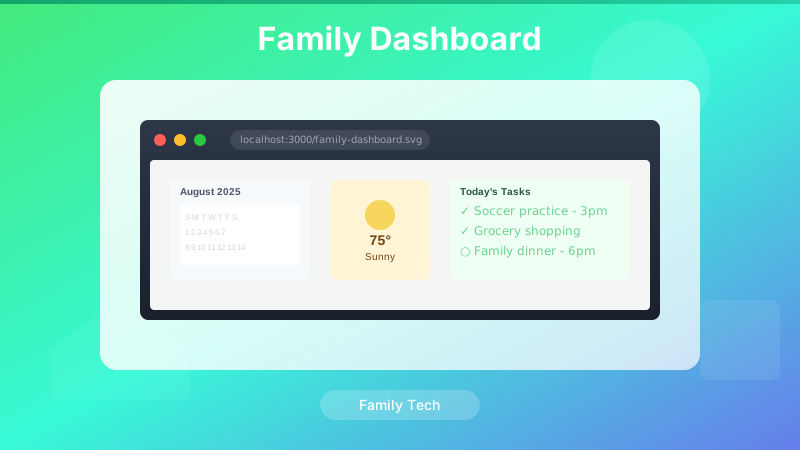
Family Dashboard is a wall-mounted information display — calendar events, weather, tide data, and a rotating weather commentary — designed to run 24/7 on an old tablet. If you want the backstory on why it exists and how it has evolved, see the original post and the v3.7–v3.26 evolution post. This post is just the setup guide.
The repo lives at github.com/josefresco/family-dash. The current release is v3.30.
Prerequisites
- A free OpenWeather API key (the free tier is more than enough)
- A CalDAV-compatible calendar — Google Calendar, Apple iCloud, Nextcloud, or any standard CalDAV server
- A free Vercel account for the CalDAV proxy (only needed for calendar integration; weather works without it)
- Git and Node.js 18+ installed locally
If you skip Vercel and the CalDAV setup, the dashboard still works for weather, tides, and the clock — just without calendar events.
Step 1: Clone the Repo
git clone https://github.com/josefresco/family-dash.git
cd family-dash
There's no build step and no npm install required for the dashboard itself. Open dashboard.html in a browser and it will load — at this point it will show weather placeholders (no API key yet) and no calendar events, but the layout will render.
Step 2: Run the Setup Wizard
Open setup.html in a browser. This is a guided configuration wizard that walks through every credential the dashboard needs and writes them to config.js.
The wizard covers:
- OpenWeather API key and location — paste your key, enter your city name or coordinates
- CalDAV connection strings — up to three calendar accounts, each with a server URL, username, and password
- CALDAV_PROXY_URL — the Vercel function URL (you'll fill this in after Step 4)
- Display preferences — timezone, temperature unit (°F/°C), tide station ID
Each section in the wizard has a "Test Connection" button that validates the credential before saving. You can run through the wizard in order, skip sections you don't need, and come back to fill in the proxy URL after deploying to Vercel.
Step 3: Get Your OpenWeather API Key
Go to openweathermap.org/api and create a free account. Under "My API Keys", generate a key. The free tier includes the Current Weather and 5-Day Forecast endpoints that Family Dashboard uses.
One gotcha: new OpenWeather API keys take up to 2 hours to activate. If the weather section shows errors immediately after pasting the key, wait a bit and try again. The test button in the setup wizard will tell you whether the key is active.
Paste the key into the setup wizard's weather section. Enter your location as a city name (Miami, FL, US), a zip code, or latitude/longitude coordinates. Hit "Test Connection" — you should see current conditions returned in the preview.
Step 4: Set Up CalDAV Credentials
CalDAV integration requires an App Password rather than your main account password. The reason: CalDAV clients authenticate over Basic Auth (username + password in the request headers), and most calendar providers require App Passwords for third-party integrations as a security measure.
Google Calendar App Password
- Go to myaccount.google.com → Security → 2-Step Verification (must be enabled)
- Scroll to App passwords at the bottom of that page
- Select "Other (Custom name)", name it "Family Dashboard", and click Generate
- Copy the 16-character password — you won't see it again
In the setup wizard, use these values for a Google Calendar account:
- Server URL:
https://www.googleapis.com/calendar/v3/calendars/ - Username: your Gmail address
- Password: the 16-character App Password (no spaces)
The CalDAV URL for a specific Google Calendar is https://apidata.googleusercontent.com/caldav/v2/YOUR_CALENDAR_ID/events. Your primary calendar ID is usually your Gmail address. You can find other calendar IDs under Calendar Settings → Integrate calendar in Google Calendar.
iCloud Calendar
For iCloud, generate an App-Specific Password at appleid.apple.com → Sign-In and Security → App-Specific Passwords. The CalDAV server URL is https://caldav.icloud.com. iCloud CalDAV uses automatic discovery, so the setup wizard's connection test will locate the right calendar URL once the server, username, and App Password are entered.
Nextcloud / Generic CalDAV
For self-hosted CalDAV (Nextcloud, Radicale, Baikal, etc.), use your server's CalDAV endpoint directly. Nextcloud's endpoint follows the pattern https://your-nextcloud.com/remote.php/dav/calendars/USERNAME/. No App Password needed — your regular Nextcloud credentials work.
Step 5: Deploy the CalDAV Proxy to Vercel
Browsers block direct CalDAV requests from a web page due to CORS restrictions — CalDAV servers don't send the Access-Control-Allow-Origin header that browsers require for cross-origin requests. The api/calendar.js serverless function in the repo acts as a proxy: the dashboard calls the function, the function calls the CalDAV server, and the response comes back without a CORS issue.
Why Vercel
The function is a single file with no external dependencies beyond Node's built-in https module. Vercel's free tier is more than sufficient — the proxy handles a handful of requests per hour at most. You could deploy the same function to Netlify Functions, Cloudflare Workers, or any other serverless platform with minor modifications, but Vercel's automatic GitHub integration makes it the path of least resistance.
Deploying
# Install the Vercel CLI if you haven't already
npm install -g vercel

# From the family-dash project root
vercel

# Follow the prompts:
# - Link to your Vercel account
# - Set up as a new project
# - Root directory: . (the repo root)
# - No build command needed
# - Output directory: . (the repo root)

# After deployment, Vercel gives you a URL like:
# https://family-dash-yourname.vercel.app
After deploying, go back to setup.html and paste the Vercel deployment URL into the CALDAV_PROXY_URL field. The full proxy URL will be https://your-deployment.vercel.app/api/calendar.
Passing Credentials Securely
The proxy function receives the CalDAV server URL, username, and password as query parameters or in the request body — they're sent over HTTPS and never logged or stored by the function. For production use, consider setting CalDAV credentials as Vercel environment variables and having the function read them server-side rather than passing them from the client. The setup wizard has an option for this under "Advanced Configuration".
Step 6: Test Everything
With all credentials configured, open dashboard.html in a browser. Within 30 seconds of the first load, you should see:
- Current temperature and conditions in the weather panel
- Today's high/low and precipitation probability
- Today's calendar events (fetched via the proxy) grouped by account
- A weather one-liner at the bottom of the weather panel
If the calendar is empty but weather is working, check the browser console for CalDAV proxy errors. The most common issues are:
- 401 Unauthorized — wrong App Password or the App Password hasn't propagated yet (Google can take a few minutes)
- 404 Not Found — incorrect CalDAV URL for your calendar account
- CORS error — the CALDAV_PROXY_URL in config.js is either empty or pointing to the wrong endpoint
Step 7: Deploy as a Static Site
The dashboard is a static HTML file — you can serve it from anywhere.
GitHub Pages
Fork the repo and enable GitHub Pages on the main branch from the repository settings. The dashboard will be available at https://yourusername.github.io/family-dash/dashboard.html. Your config.js with credentials should not be committed to a public fork — add it to .gitignore and serve it separately or use environment-based configuration.
Raspberry Pi on Local Network
The original setup runs on a Raspberry Pi serving the file over the local network:
# On the Pi, install nginx
sudo apt install nginx

# Copy the family-dash files to the web root
sudo cp -r family-dash/* /var/www/html/

# The dashboard is now accessible at http://raspberry-pi-ip/dashboard.html
This approach keeps credentials off the public internet entirely — the CalDAV proxy still runs on Vercel, but the dashboard HTML lives on your local network and is only reachable from devices in your home.
Step 8: iPad Kiosk Setup
The target hardware is any iPad — even a first-generation iPad Air runs the dashboard without trouble. Getting it into a clean kiosk mode takes a few steps:
- Open the dashboard URL in Safari
- Tap the Share button → Add to Home Screen
- Name it "Dashboard" and confirm — this creates a full-screen web app icon
- Launch from the home screen icon; it now runs without the Safari browser chrome
- In Settings → Accessibility → Guided Access, enable Guided Access and set a passcode to prevent accidental navigation away from the dashboard
For a wall-mounted setup, an iPad case with a built-in wall mount works well. The screen will stay on if the iPad is plugged in — iOS won't auto-lock a charging device running a full-screen web app if you set the Auto-Lock to "Never" under Settings → Display & Brightness.
Optional: Tide Data
Tide data comes from the NOAA Tides and Currents API and requires a NOAA station ID for your location. Find yours at tidesandcurrents.noaa.gov/stations.html — search by state or nearest city and copy the 7-digit station ID. Paste it into the setup wizard's tide section. The tide panel is hidden if no station ID is configured.
NOAA tide predictions are free, require no API key, and are published months in advance — the dashboard caches them for 24 hours and rarely needs to refetch.
Keeping It Updated
The repo gets occasional updates — weather UI refinements, CalDAV reliability improvements, and commentary updates. To pull the latest:
git pull origin mainYour config.js is not tracked by git (it's in .gitignore), so credentials survive a pull. If a config format change is introduced in a new version, setup.html will display a migration notice on first load.
Troubleshooting Reference
Weather not loading
- Verify the API key is active (new keys take up to 2 hours)
- Check the browser console for the specific error response from OpenWeather
- Confirm the location string is valid — use coordinates if city name lookup fails
Calendar shows no events
- Confirm the CalDAV proxy URL ends in
/api/calendar(not just the Vercel domain root) - Check Vercel function logs for errors from the CalDAV server
- For Google Calendar, ensure 2-Step Verification is enabled before trying to generate an App Password
Dashboard goes blank after a few hours
- This is usually an uncaught JavaScript error from a failed API fetch — check the console
- The error handler in
error-handler.jsshould display a visible error panel rather than a blank screen; if you're seeing a blank screen, the error is happening during initial render rather than on refresh
What's Next
Once the dashboard is running, there are a few configuration options worth exploring:
- Multi-account color coding — each CalDAV account gets a distinct accent color; configure the color per account in
config.jsunderaccounts[n].color - Custom weather commentary — the roadmap for a future version includes a JSON config override for the weather narrative engine; for now, editing
weather-narrative-engine.jsdirectly is the way to customize the one-liners - Timezone configuration — the dashboard defaults to Eastern Time; change
config.timezoneto any IANA timezone string ("America/Los_Angeles","Europe/London", etc.)
Conclusion
The setup is longer to describe than to do. In practice: clone, run the wizard, paste two API credentials, click deploy on Vercel, and navigate to the URL on the iPad. The wizard handles the config file format; the proxy handles the CORS problem; the rest is just a static HTML file that refreshes itself.
The full source is on GitHub. If you run into something the wizard doesn't handle well, open an issue — the repo is actively maintained.