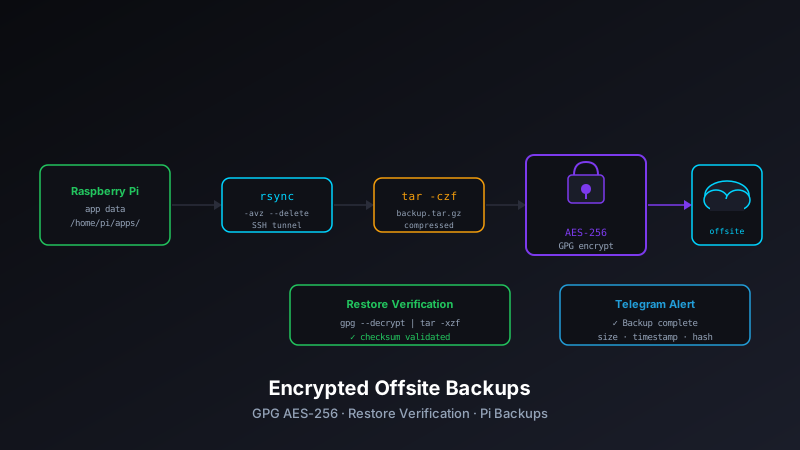
verify.sh script that downloads, decrypts, and spot-checks a recent backup — then reports pass or fail via Telegram. The original rsync + SSH + cron architecture is unchanged.
Why I Added Encryption
The original pi-backups setup was simple and solid: rsync over SSH to a cheap VPS, nightly via cron, with a Telegram notification on success or failure. It worked exactly as intended — until I started thinking about what "worked" actually meant.
rsync over SSH encrypts data in transit. But once the files land on the remote server, they sit on disk in plaintext. If the VPS provider can access the filesystem (they can), or if the server is ever compromised, your application data, configs, and any credentials inside those backup files are fully readable.
For a personal Pi running home automation and a family dashboard, this probably doesn't matter much in practice. But I was already storing database files, config files with API keys, and Telegram bot tokens in the backup set. Encrypting them took about 30 minutes to implement and eliminates the whole concern for the cost of one dependency (gpg, which is pre-installed on Raspberry Pi OS).
GPG Symmetric Encryption: Why Symmetric?
There are two ways to encrypt with GPG:
- Asymmetric (public/private key) — Encrypt with a public key, decrypt with a private key. Secure and flexible, but requires key management: generating a keypair, securing the private key, keeping it off the Pi, and having it available when you need to restore in an emergency.
- Symmetric (passphrase-based) — A single passphrase encrypts and decrypts. Simpler, no key management required, and the passphrase is the only thing you need to perform a restore.
For a personal backup system, symmetric encryption is the right call. The passphrase goes in a config file (protected by filesystem permissions), in your password manager, and nowhere else. No key pair to manage, no risk of losing your private key, no "how do I get this onto a new machine" problem during a disaster recovery scenario.
The trade-off: if someone obtains your passphrase and gains access to the remote server, they have your backups. But that's a meaningful improvement over the prior state where server access alone was sufficient.
How the Encryption Works
The updated backup script creates a compressed, encrypted archive before transferring, instead of rsync-ing files directly. Here's the updated flow:
1. Create the Archive
#!/bin/bash
# pi-backups: nightly backup with GPG encryption

REMOTE_USER="backup"
REMOTE_HOST="your-remote-server.com"
REMOTE_PATH="/backups/pi"
GPG_PASSPHRASE_FILE="/home/pi/.config/pi-backups/passphrase"
STAGING_DIR="/tmp/pi-backup-staging"
DATE=$(date +%Y-%m-%d)
ARCHIVE_NAME="pi-backup-${DATE}.tar.gz.gpg"
LOG_FILE="/var/log/pi-backups.log"

log() {
    echo "[$(date '+%Y-%m-%d %H:%M:%S')] $1" | tee -a "$LOG_FILE"
}

log "Starting backup..."

# Create staging directory
mkdir -p "$STAGING_DIR"

# Create compressed tar archive
log "Creating archive..."
tar -czf "${STAGING_DIR}/pi-backup-${DATE}.tar.gz" \
    /home/pi/apps/ \
    /home/pi/scripts/ \
    /etc/crontab \
    /home/pi/.bashrc \
    --exclude='*.log' \
    --exclude='*/__pycache__/*' \
    --exclude='*/node_modules/*' \
    2>> "$LOG_FILE"
2. Encrypt with GPG
# Encrypt the archive with GPG symmetric encryption
log "Encrypting archive..."
gpg --batch \
    --passphrase-file "$GPG_PASSPHRASE_FILE" \
    --symmetric \
    --cipher-algo AES256 \
    --output "${STAGING_DIR}/${ARCHIVE_NAME}" \
    "${STAGING_DIR}/pi-backup-${DATE}.tar.gz"

# Remove the unencrypted archive immediately
rm -f "${STAGING_DIR}/pi-backup-${DATE}.tar.gz"
The --batch flag enables non-interactive mode (essential for cron). --cipher-algo AES256 explicitly selects 256-bit AES — stronger than GPG's default cipher. The unencrypted tar is deleted immediately after encryption; it never touches the remote server.
3. Transfer and Clean Up
# Transfer encrypted archive to remote
log "Transferring archive..."
scp "${STAGING_DIR}/${ARCHIVE_NAME}" \
    "${REMOTE_USER}@${REMOTE_HOST}:${REMOTE_PATH}/${ARCHIVE_NAME}"

EXIT_CODE=$?

# Clean up staging regardless of transfer result
rm -rf "$STAGING_DIR"

if [ $EXIT_CODE -eq 0 ]; then
    log "Backup complete: ${ARCHIVE_NAME} ✓"
    send_telegram "✅ Pi backup complete: ${DATE} (encrypted)"
else
    log "Transfer FAILED ✗"
    send_telegram "❌ Pi backup transfer FAILED — check logs"
    exit 1
fi
The staging directory is cleaned up in all cases — success or failure. If the transfer fails, the encrypted archive doesn't sit in /tmp indefinitely.
Retention: Now Simpler to Manage
The archive-per-day approach makes retention management straightforward — delete archives older than 30 days by filename pattern:
# On the remote server: weekly cleanup cron
find /backups/pi -name "pi-backup-*.tar.gz.gpg" -mtime +30 -delete
The filename convention pi-backup-YYYY-MM-DD.tar.gz.gpg makes it easy to list backups by date and the -mtime +30 predicate handles age filtering without any custom logic.
The Restore Verification Script
A backup you've never restored is a backup you don't actually have. The new verify.sh script tests the full restore pipeline automatically — download, decrypt, extract manifest, spot-check, report:
#!/bin/bash
# verify.sh: download, decrypt, and spot-check a recent backup

REMOTE_USER="backup"
REMOTE_HOST="your-remote-server.com"
REMOTE_PATH="/backups/pi"
GPG_PASSPHRASE_FILE="/home/pi/.config/pi-backups/passphrase"
VERIFY_DIR="/tmp/pi-backup-verify"
LOG_FILE="/var/log/pi-backup-verify.log"

log() {
    echo "[$(date '+%Y-%m-%d %H:%M:%S')] $1" | tee -a "$LOG_FILE"
}

log "Starting restore verification..."

# Find most recent backup on remote
LATEST=$(ssh "${REMOTE_USER}@${REMOTE_HOST}" \
    "ls -1t ${REMOTE_PATH}/pi-backup-*.tar.gz.gpg | head -1")

if [ -z "$LATEST" ]; then
    log "ERROR: No backup archives found on remote"
    send_telegram "❌ Backup verification FAILED: no archives found on remote"
    exit 1
fi

log "Found latest backup: $(basename $LATEST)"

# Download it
mkdir -p "$VERIFY_DIR"
scp "${REMOTE_USER}@${REMOTE_HOST}:${LATEST}" "${VERIFY_DIR}/latest.tar.gz.gpg"

# Decrypt
log "Decrypting..."
gpg --batch \
    --passphrase-file "$GPG_PASSPHRASE_FILE" \
    --decrypt \
    --output "${VERIFY_DIR}/latest.tar.gz" \
    "${VERIFY_DIR}/latest.tar.gz.gpg"

if [ $? -ne 0 ]; then
    log "ERROR: Decryption failed"
    send_telegram "❌ Backup verification FAILED: decryption error"
    rm -rf "$VERIFY_DIR"
    exit 1
fi

# List archive contents and spot-check expected paths
log "Verifying archive contents..."
tar -tzf "${VERIFY_DIR}/latest.tar.gz" > "${VERIFY_DIR}/contents.txt" 2>&1

EXPECTED_PATHS=(
    "home/pi/apps/"
    "home/pi/scripts/"
    "home/pi/.bashrc"
)

MISSING=()
for path in "${EXPECTED_PATHS[@]}"; do
    if ! grep -q "$path" "${VERIFY_DIR}/contents.txt"; then
        MISSING+=("$path")
    fi
done

# Clean up
rm -rf "$VERIFY_DIR"

if [ ${#MISSING[@]} -eq 0 ]; then
    ARCHIVE_DATE=$(basename "$LATEST" | grep -oP '\d{4}-\d{2}-\d{2}')
    log "Verification passed: all expected paths present in ${ARCHIVE_DATE} backup ✓"
    send_telegram "✅ Backup verified: ${ARCHIVE_DATE} archive decrypts and extracts cleanly"
else
    log "ERROR: Missing expected paths: ${MISSING[*]}"
    send_telegram "❌ Backup verification FAILED: missing paths: ${MISSING[*]}"
    exit 1
fi
The script uses tar -t (list contents only) rather than a full extract — no disk I/O for gigabytes of data, just a manifest check. This confirms the archive is readable, decryption worked, and the expected top-level paths are present. Fast enough to run weekly without friction.
Scheduling Verification
Verification runs weekly — frequent enough to catch problems before they compound, infrequent enough that it doesn't add noticeable load:
# /etc/crontab — weekly restore verification (Sunday 3 AM)
0 3 * * 0 pi /home/pi/pi-backups/verify.sh
Sunday at 3 AM, after the nightly backup has completed. If the verify script sends a Telegram failure alert, I have a problem worth investigating before the following week's backups.
Pi Agent Integration
Both the backup and verification scripts are now registered as named commands in raspberry-pi-agent, which means I can trigger them on-demand from Arpy Assist's browser interface without SSHing into the Pi:
# In raspberry-pi-agent/commands.yaml
backup_run:
  command: /home/pi/pi-backups/backup.sh
  timeout: 300
  description: "Run Pi offsite backup immediately"

backup_verify:
  command: /home/pi/pi-backups/verify.sh
  timeout: 180
  description: "Download and verify most recent backup"

backup_list:
  command: "ssh backup@your-remote-server.com 'ls -lht /backups/pi/*.gpg | head -10'"
  timeout: 30
  description: "List 10 most recent backup archives on remote"
"Run backup now," "Verify backup," and "List backups" are now single-button actions in the Arpy Assist UI. No terminal required.
Updated Config
The new backup.conf.example includes two additional fields for encryption:
# backup.conf
REMOTE_USER="backup"
REMOTE_HOST="your-remote-server.com"
REMOTE_PATH="/backups/pi"

# Encryption (added April 2026)
GPG_PASSPHRASE_FILE="/home/pi/.config/pi-backups/passphrase"

# Notifications (Telegram)
BOT_TOKEN="your-telegram-bot-token"
CHAT_ID="your-telegram-chat-id"
The passphrase file contains only the passphrase — no trailing newline, no shell quoting complications. Permissions must be 600:
# One-time setup: create the passphrase file
mkdir -p /home/pi/.config/pi-backups
printf 'your-strong-passphrase' > /home/pi/.config/pi-backups/passphrase
chmod 600 /home/pi/.config/pi-backups/passphrase
Migrating From the Original Setup
If you're upgrading from the original rsync-based setup, the existing unencrypted backups on the remote don't need to be migrated — they can age out under the 30-day retention policy. New backups will be encrypted; old ones will expire naturally. Within a month you'll have a fully encrypted backup history.
If you want to encrypt existing backups immediately (reasonable if you're concerned about that window of plaintext data on the VPS), you can run this once on the remote server:
# On the remote server: encrypt and archive existing backup dirs (run once)
for dir in /backups/pi/apps/*/; do
    date_str=$(basename "$dir")
    tar -czf - "$dir" | \
    gpg --batch \
        --passphrase "your-passphrase" \
        --symmetric \
        --cipher-algo AES256 \
        --output "/backups/pi/pi-backup-${date_str}.tar.gz.gpg"
done
Run it inside screen or tmux so it survives SSH disconnection on large backup sets.
What Didn't Change
The core pi-backups architecture from the March 2026 release is unchanged:
- SSH key-based authentication to the remote server (no password prompts)
- Cron scheduling — nightly at 2 AM by default
- 30-day retention with weekly cleanup
- Telegram alerts for backup status (success and failure)
- Pure shell scripts — no runtime dependencies beyond standard Linux tools and
gpg
GPG is pre-installed on Raspberry Pi OS. No additional package installs are required for this upgrade.
Lessons Learned
- Test decryption manually before trusting cron. Write one backup, decrypt it by hand, verify the contents, then deploy. A typo in the passphrase file means cron will happily produce encrypted archives you can't open.
- Store the passphrase in your password manager. The whole point of backups is disaster recovery. If the Pi is gone and the passphrase only lived on the Pi, you're stuck. Put it in Bitwarden, 1Password, or wherever you keep important credentials — today, before you forget.
- The verify script is not optional. It's the line between "I have backups" and "I have tested backups." Set it up at the same time as the encryption, not later.
- AES256 costs essentially nothing. The encryption and decryption overhead on a Pi 4 is negligible for backup sizes under a few GB. Default to the stronger cipher — there's no reason not to.
Getting the Update
# Pull the latest changes
cd /home/pi/pi-backups
git pull

# Review and update your config with new GPG fields
nano backup.conf

# Create passphrase file (one time)
mkdir -p /home/pi/.config/pi-backups
printf 'your-strong-passphrase' > /home/pi/.config/pi-backups/passphrase
chmod 600 /home/pi/.config/pi-backups/passphrase

# Test manually before handing off to cron
./backup.sh --dry-run

# Add weekly verification to cron
crontab -e
# Add: 0 3 * * 0 /home/pi/pi-backups/verify.sh
Conclusion
Unencrypted offsite backups are better than no backups. Encrypted offsite backups with automated restore verification are better than unencrypted ones. The upgrade took an afternoon and the Pi backup system is now genuinely complete: daily AES-256 encrypted snapshots, weekly verified restores, Telegram alerts for any failure, and on-demand control via Arpy Assist.
The full source — including the updated backup script, verify.sh, and the new backup.conf.example — is on GitHub at github.com/josefresco/pi-backups.