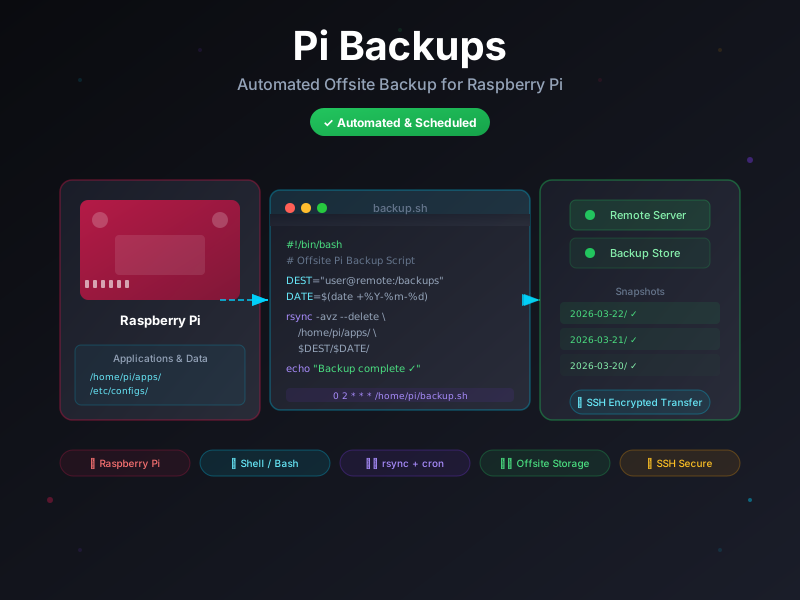
pi-backups, a set of shell scripts that rsync application data to a remote server nightly via SSH, with logging and optional Telegram alerts. SD card dies? Restore in minutes, not hours.
The Problem with SD Cards
Raspberry Pi is an incredible platform for self-hosting. It's cheap, quiet, and low-power enough to run 24/7 without guilt. Over the past year my Pi has accumulated a serious workload:
- Arpy Assist — web interface for my local AI assistant
- Telegram Pi Bot — system monitoring and remote control
- Home automation configs and custom scripts
- Database files for various self-hosted apps
All of it was sitting on a single microSD card. SD cards have a finite write cycle life — they fail, often without warning, and usually at the worst possible moment. Losing everything and rebuilding from memory would take days.
I needed backups. And I needed them to just happen, automatically, without me thinking about it.
Why Shell Scripts?
I briefly considered more elaborate solutions: Restic, BorgBackup, even spinning up a dedicated backup service. But the Pi's workload is straightforward enough that complexity would be a liability, not an asset.
Shell scripts with rsync are:
- Universally available — no package installs, no runtime dependencies
- Transparent — you can read exactly what the script does in under 50 lines
- Battle-tested — rsync has been doing this reliably for 30 years
- Composable — easy to add new backup targets with one more line
The right tool for a job isn't always the most powerful one — it's the one with the best ratio of capability to complexity for your specific situation.
How It Works
The backup system has three components:
1. The Backup Script
A single shell script defines what to back up and where to send it:
#!/bin/bash
# pi-backups: nightly offsite backup for Pi applications

REMOTE_USER="backup"
REMOTE_HOST="your-remote-server.com"
REMOTE_PATH="/backups/pi"
LOG_FILE="/var/log/pi-backups.log"
DATE=$(date +%Y-%m-%d)

log() {
    echo "[$(date '+%Y-%m-%d %H:%M:%S')] $1" | tee -a "$LOG_FILE"
}

log "Starting backup..."

# Sync each application directory
rsync -avz --delete \
    /home/pi/apps/ \
    "${REMOTE_USER}@${REMOTE_HOST}:${REMOTE_PATH}/apps/${DATE}/" \
    >> "$LOG_FILE" 2>&1

rsync -avz \
    /etc/crontab /home/pi/.bashrc \
    "${REMOTE_USER}@${REMOTE_HOST}:${REMOTE_PATH}/configs/${DATE}/" \
    >> "$LOG_FILE" 2>&1

if [ $? -eq 0 ]; then
    log "Backup complete ✓"
else
    log "Backup FAILED ✗"
    exit 1
fi
The --delete flag on the apps sync ensures the remote copy mirrors the source exactly — deleted files on the Pi won't linger indefinitely on the remote.
2. Cron Scheduling
The script runs automatically at 2:00 AM every night via cron, when the Pi is idle and network traffic is minimal:
# /etc/crontab or crontab -e
0 2 * * * pi /home/pi/scripts/backup.sh
Cron is simple and reliable. No daemon to manage, no service to monitor — if the Pi is on at 2 AM, the backup runs.
3. SSH Key Authentication
The backup runs unattended, so it uses SSH key-based authentication — no password prompts, no interactive login. The Pi's public key is added to the remote server's authorized_keys file once, and rsync handles the rest transparently.
# One-time setup: copy Pi's public key to remote
ssh-copy-id backup@your-remote-server.com

# Test the connection
ssh backup@your-remote-server.com "echo 'Connection OK'"
What Gets Backed Up
The script is organized into logical backup targets:
| Target | Path | Notes |
|---|---|---|
| Application data | /home/pi/apps/ | All self-hosted app directories |
| System configs | /etc/ | crontab, network, service configs |
| User scripts | /home/pi/scripts/ | Backup scripts, automations, tools |
| Shell config | ~/.bashrc, ~/.bash_aliases | Aliases and environment setup |
Retention Strategy
Each nightly backup lands in a date-stamped directory on the remote server: /backups/pi/apps/2026-03-22/. This means you don't just have the current state — you have a rolling history you can restore from.
I keep 30 days of backups. A cleanup script runs weekly to prune older snapshots:
# Remove backup directories older than 30 days
find /backups/pi -maxdepth 2 -type d -mtime +30 -exec rm -rf {} +
30 days covers the realistic "I deleted something important last week" scenario, without consuming unlimited remote storage.
Optional: Telegram Alerts
Since I already run a Telegram Pi Bot, wiring up backup notifications was straightforward. A short function at the end of the backup script fires a message on success or failure:
send_telegram() {
    local message="$1"
    curl -s -X POST \
        "https://api.telegram.org/bot${BOT_TOKEN}/sendMessage" \
        -d "chat_id=${CHAT_ID}&text=${message}" \
        > /dev/null
}

# At the end of the script:
if [ $exit_code -eq 0 ]; then
    send_telegram "✅ Pi backup complete (${DATE})"
else
    send_telegram "❌ Pi backup FAILED — check logs"
fi
Now I get a quiet daily confirmation that the backup ran — and an immediate alert if anything goes wrong.
Remote Storage Options
The scripts assume SSH access to a remote server, which gives you several hosting options:
- A cheap VPS — $5–$6/month gets you a Hetzner or DigitalOcean droplet with more than enough storage
- Another machine at home — rsync over LAN, though this doesn't protect against house fires or theft
- A NAS with SSH enabled — Synology or QNAP units work great as backup targets
- rclone instead of rsync — if you prefer S3, Backblaze B2, or Google Drive, swap rsync for rclone
The scripts are intentionally generic — swapping the remote destination requires changing two variables.
Setup: Getting Started
# Clone the repo
git clone https://github.com/josefresco/pi-backups.git
cd pi-backups

# Copy and configure
cp backup.conf.example backup.conf
nano backup.conf   # Set your REMOTE_HOST, paths, etc.

# Make scripts executable
chmod +x *.sh

# Test run (dry-run flag to preview without transferring)
./backup.sh --dry-run

# Add to cron when ready
crontab -e
# Add: 0 2 * * * /home/pi/pi-backups/backup.sh
Lessons Learned
Running this for the first week surfaced a few things worth knowing:
- Test your restores. A backup you've never restored is a backup you don't actually have. I do a restore drill monthly — pick a directory, delete it, restore from backup, verify it's intact.
- Log verbosely at first. The full rsync output in the log file feels excessive, but it's invaluable the first time something goes wrong.
- Exclude volatile data. Temp files, cache directories, and log files don't need to be offsite. Add an
--excludepatterns file to skip them and keep backups lean. - Watch the first few runs. Cron silently swallows failures unless you've set up
MAILTOor notifications. Check the log manually for the first week.
What This Doesn't Do
To be clear about scope: pi-backups backs up application data and configs — not a full system image. If the Pi's SD card dies, you'll need to:
- Flash a fresh Raspberry Pi OS onto a new card
- Install the required packages (
apt install ...) - Restore your data from the backup
This is the right tradeoff for my setup. A full image backup is gigabytes per snapshot and overkill when the OS itself can be reinstalled in 10 minutes. What takes hours to rebuild is the data and configuration — and that's exactly what this protects.
Conclusion
The Pi had been running without backups for too long. Every time an SD card corruption story popped up online, I felt a pang of anxiety about the data I'd lose if mine failed that day.
The backup scripts took about two hours to write and test. They've been running unattended every night since, confirming success with a Telegram message I barely notice anymore. That's exactly how infrastructure should work — invisible until you need it, and reliable when you do.
The full source is available on GitHub at github.com/josefresco/pi-backups. It's intentionally simple — read it, understand it, and adapt it to your own Pi's layout.
April 2026 Update
The April 2026 release adds two significant upgrades to the backup pipeline:
- GPG encryption — Backup archives are now encrypted with AES-256 before transfer. Files on the remote server are ciphertext; your hosting provider can no longer read application data, configs, or credentials stored in the backup set.
- Automated restore verification — A new
verify.shscript runs weekly via cron: it downloads the most recent backup archive from the remote, decrypts it, lists the archive contents, and checks that all expected paths are present. Pass or fail is reported via Telegram. A backup you've never verified is a backup you don't actually have.
Both scripts are also registered as named commands in raspberry-pi-agent, making them triggerable on-demand from the Arpy Assist browser interface. The core architecture — rsync-based archiving, SSH key auth, nightly cron, 30-day retention — is unchanged.
Full details in the follow-up post: Encrypted Offsite Backups: Adding GPG and Restore Verification to Pi Backups →
May 2026 Update
The May 2026 push to the pi-backups repo brings two quality-of-life improvements based on several months of production use:
- Configurable retention periods per target. Previously the retention cleanup applied a single 30-day window to all backup targets uniformly. The updated
backup.confsupports per-target retention: application data kept for 30 days, system configs kept for 90 days (config changes are infrequent but drift detection benefits from a longer window). Each target now accepts aRETAIN_DAYSkey that overrides the global default. - Dry-run summary report. Running
backup.sh --dry-runpreviously printed the raw rsync--dry-runoutput — useful but verbose. The updated dry-run mode now prints a concise summary: files to be added, files to be deleted, estimated transfer size, and estimated completion time based on the previous run's throughput. The full rsync output is written to a separatedry-run.logfor review when needed.
Both changes are backwards-compatible — existing backup.conf files without RETAIN_DAYS entries continue to use the 30-day default. Updating is a git pull and optionally adding the new config keys.