TELEGRAM_BOT_TOKEN and TELEGRAM_CHAT_ID — are all the configuration required.
What pi-backups Is
A Raspberry Pi running 24/7 home services has one uncomfortable vulnerability: SD card failure. When the card dies, everything on it goes with it — application data, configuration files, credentials, years of accumulated setup. There's no RAID, no hot spare, and typically no warning before it happens.
pi-backups solves this with a set of shell scripts that copy defined application directories to a remote destination using rsync over SSH. The original March 2026 release covered the core rsync setup, SSH key auth, and the nightly cron job. The April 2026 update added GPG encryption — backup archives are AES-256 encrypted before transfer, so the data is unreadable to the remote host — plus a verify.sh script that decrypts and checksums the most recent archive to confirm restore readiness.
This June update adds the one thing that was still missing: visibility. Cron jobs run silently at 2 AM. You only discover a failure when you go looking for it — usually after the thing you needed to restore is already gone.
The Silent Cron Problem
Cron's default failure mode is silence. A script exits with code 255 because the SSH connection was refused. The next night it happens again. And the night after. Three weeks later, the SD card dies and you find out — for the first time — that backups stopped working a month ago.
The traditional fix is MAILTO in the crontab: cron emails stdout/stderr from failed jobs. This works, but requires a local mail transfer agent and an SMTP relay, and most self-hosters end up with mail going to spam or the MTA being misconfigured. It's more infrastructure than the problem warrants.
The pi-backups project already uses Telegram elsewhere — the related Telegram Pi Monitoring Bot sends alerts for high CPU temperature, disk pressure, and service restarts. The Bot API is a curl call to a single HTTPS endpoint. Every Pi already has curl. This is the right tool.
How the Telegram Integration Works
The Telegram Bot API sends a message in a single HTTP POST:
curl -s -X POST \
  "https://api.telegram.org/bot${TELEGRAM_BOT_TOKEN}/sendMessage" \
  -d chat_id="${TELEGRAM_CHAT_ID}" \
  -d parse_mode="HTML" \
  -d text="$MESSAGE" \
  > /dev/null
The message content is just a string — plain text or HTML-formatted with bold, code spans, and line breaks. No SDK, no dependency installation, no library version to maintain. The entire notification layer is eight lines of shell.
The two required credentials live in .env alongside the existing backup configuration:
# Telegram Bot credentials (optional — notifications disabled if unset)
TELEGRAM_BOT_TOKEN=1234567890:ABCDEFghijklmnopqrstuvwxyz
TELEGRAM_CHAT_ID=987654321
If either variable is unset, the notification function exits silently. The backup itself still runs normally. This makes the Telegram integration genuinely optional — adding it requires no changes to the backup logic, just two new variables in .env.
Success Notifications: What Gets Reported
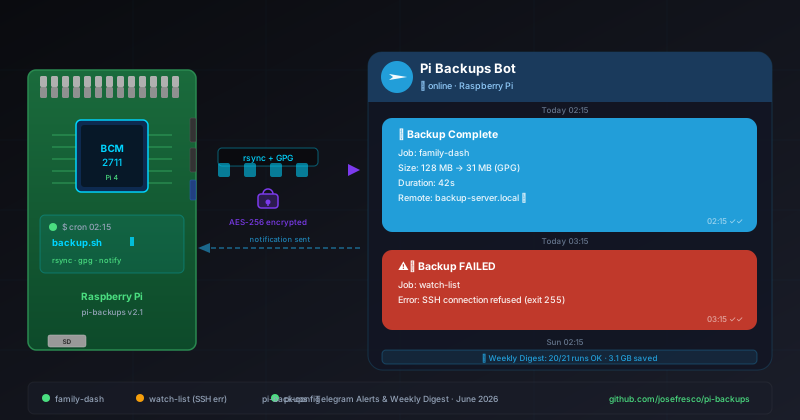
After a clean backup run, the script sends a green-bordered success message with four fields:
✅ <b>Backup Complete</b>

Job:       family-dash
Size:      128 MB → 31 MB (GPG)
Duration:  42s
Remote:    backup-server.local ✔
The size field deserves a note. The script captures both the pre-encryption directory size (via du -sh) and the final encrypted archive size. The ratio — 128 MB down to 31 MB in the example above — tells you something useful: if the ratio changes dramatically from run to run, something unexpected changed in the source directory.
Duration is measured with SECONDS, a built-in Bash variable that counts elapsed seconds since the shell started. The backup script resets it to zero at the start of each job and reads it after rsync completes. No date arithmetic required.
SECONDS=0

# ... rsync and gpg commands ...

ELAPSED=$SECONDS
The remote host confirmation (the ✔ after the hostname) is the result of a quick SSH no-op after the rsync completes, confirming the destination is still reachable at the end of the transfer. It's not a full integrity check — that's verify.sh's job — but it confirms the connection didn't drop midway through.
Failure Alerts: Surface the Exit Code
When any command in the backup pipeline fails, the script sends a failure alert immediately rather than waiting for the job to finish:
⚠️ <b>Backup FAILED</b>

Job:   watch-list
Error: SSH connection refused (exit 255)
The key design decision here is trapping exit codes explicitly rather than relying on set -e. Bash's set -e exits the script on any error, but it doesn't tell you which command failed or with what code. The backup script uses a wrapper function instead:
run_step() {
    local desc="$1"
    shift
    "$@"
    local code=$?
    if [[ $code -ne 0 ]]; then
        tg_notify "⚠️ <b>Backup FAILED</b>\n\nJob:   ${JOB_NAME}\nError: ${desc} (exit ${code})"
        exit $code
    fi
}
Each step in the pipeline is wrapped:
run_step "SSH connection refused" \
    ssh -q "${REMOTE_USER}@${REMOTE_HOST}" "mkdir -p ${REMOTE_PATH}"

run_step "rsync transfer failed" \
    rsync -az --delete "${SOURCE_DIR}/" \
    "${REMOTE_USER}@${REMOTE_HOST}:${REMOTE_PATH}/"

run_step "GPG encryption failed" \
    gpg --batch --yes --symmetric --cipher-algo AES256 \
    --passphrase-file "${GPG_PASSFILE}" \
    --output "${REMOTE_PATH}/${JOB_NAME}.tar.gz.gpg" \
    "${ARCHIVE_TMP}"
The description string ("SSH connection refused", "rsync transfer failed") is passed in at the call site, so the Telegram message tells you exactly which step broke without requiring you to read a log file. SSH returning exit 255 specifically means the connection was refused or timed out — a common failure mode when the remote host is rebooted or the port changes.
The Weekly Digest
Per-job notifications tell you when something breaks. The weekly digest tells you how healthy the backup system has been over the past seven days — useful for catching intermittent failures that individually got fixed but are happening more often than they should.
A separate script, digest.sh, reads the backup log files (/var/log/pi-backups/) and counts successes and failures per job over the previous seven days. It fires every Sunday at 02:15 via a separate cron entry:
# Weekly backup health digest (Sundays at 02:15)
15 2 * * 0 /opt/pi-backups/digest.sh
The message format is compact — one line per job, a 7-day success ratio, and a total bytes-saved figure:
📊 <b>Weekly Backup Digest</b>

✅ family-dash    7/7 runs
⚠️ watch-list    6/7 runs (1 fail: Tue)
✅ pi-config      7/7 runs

Total saved this week: 3.1 GB
The log parsing is intentionally simple. Each backup run appends a single-line record to its job log:
2026-06-17T02:15:42 family-dash OK 128MB 31MB 42s
2026-06-18T02:15:38 family-dash OK 129MB 31MB 41s
2026-06-18T03:15:11 watch-list FAIL 255
digest.sh greps the last seven days of entries, counts OK vs FAIL per job, and computes the total bytes saved by summing the pre-encryption size column. No database, no complex parsing — just awk and grep on a flat log file.
Setting Up the Telegram Bot
Creating the bot takes about two minutes:
- Message
@BotFatheron Telegram and send/newbot - Follow the prompts — you'll get a bot token in the format
1234567890:ABCDEFxyz - Start a conversation with your new bot (search for it by username and send any message)
- Get your chat ID by visiting
https://api.telegram.org/bot<TOKEN>/getUpdatesin a browser and reading thechat.idvalue from the response - Add both values to
.env
If you want the alerts to go to a group chat instead of a direct message — useful if multiple people should see the alerts — add the bot to the group, and use the group's chat ID (which will be a negative number, like -1001234567890).
Log Rotation and Storage
The log files in /var/log/pi-backups/ grow by one line per backup run. At one line per job per night, even a setup with five jobs will accumulate under 2,000 lines per year — small enough that log rotation is not strictly necessary. The digest script uses only the last seven days of entries, so old lines are harmless.
That said, the update includes a logrotate config snippet for users who prefer bounded log files:
/var/log/pi-backups/*.log {
    weekly
    rotate 12
    compress
    missingok
    notifempty
}
Drop this in /etc/logrotate.d/pi-backups and logrotate handles the rest automatically.
What the June 2026 Update Ships
To summarize the changes in this release:
- Telegram notifications: A
tg_notify()function inbackup.shthat sends success or failure messages after each job. Activated by settingTELEGRAM_BOT_TOKENandTELEGRAM_CHAT_IDin.env; silently skipped if either is unset. - Structured exit-code trapping: The
run_step()wrapper replaces bare command execution with named, trap-aware steps that include the failing command's description and exit code in the Telegram alert. - Per-run log records: Each job appends a structured line to
/var/log/pi-backups/<job>.logwith timestamp, status, pre-encryption size, encrypted size, and elapsed seconds. - Weekly digest: A new
digest.shscript that reads the past seven days of log entries, computes per-job success ratios, and sends a summary Telegram message every Sunday morning. - logrotate config: An optional
/etc/logrotate.d/pi-backupssnippet for sites that prefer bounded log files.
Upgrading from the Previous Version
The June update is backward compatible. Existing .env files work unchanged — the Telegram notification is off by default until you add the two new variables. The log file format is new (previous runs generated no log records), so the first weekly digest will only cover runs since the upgrade date.
# Pull the latest version
git pull origin main

# Add to your .env (optional — notifications disabled if skipped)
echo "TELEGRAM_BOT_TOKEN=your-token-here" >> .env
echo "TELEGRAM_CHAT_ID=your-chat-id-here" >> .env

# Add the weekly digest cron entry
(crontab -l; echo "15 2 * * 0 /opt/pi-backups/digest.sh") | crontab -

# Test the notification manually
source .env && bash notify-test.sh
The notify-test.sh script (included in the update) sends a test message to your Telegram chat so you can confirm the credentials are correct before the next real backup run.
Get It Running
The full project is at github.com/josefresco/pi-backups. The README covers the full setup from scratch: SSH key configuration, rsync target setup, GPG passphrase generation, cron entries, and now the optional Telegram notification layer. The .env.example file documents every variable.
If this is your first time setting up pi-backups, start with the original post for the rsync foundation, the encryption post for GPG, and then add Telegram notifications last — in that order. Each layer works independently and you can stop at whichever level of complexity fits your setup.